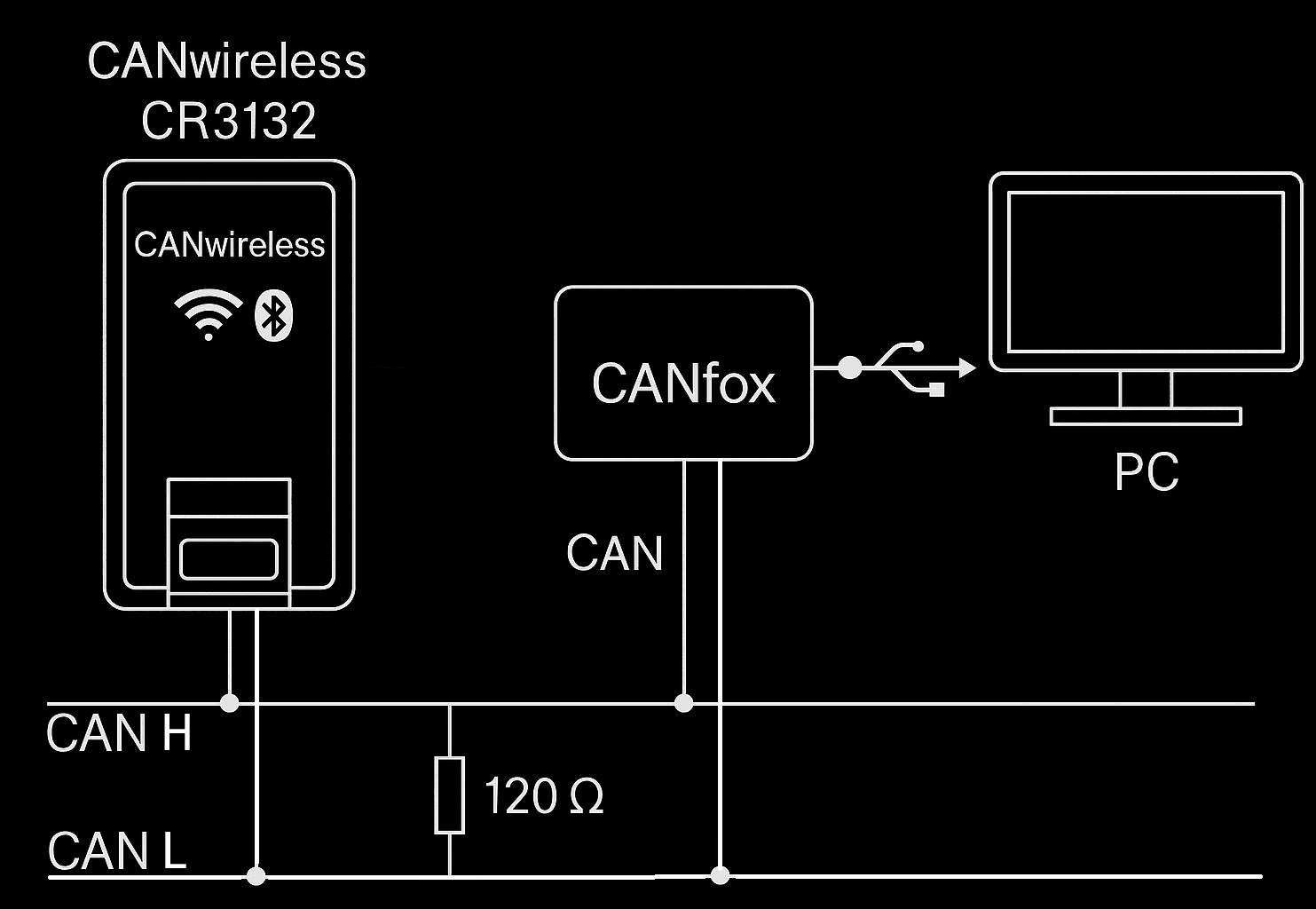
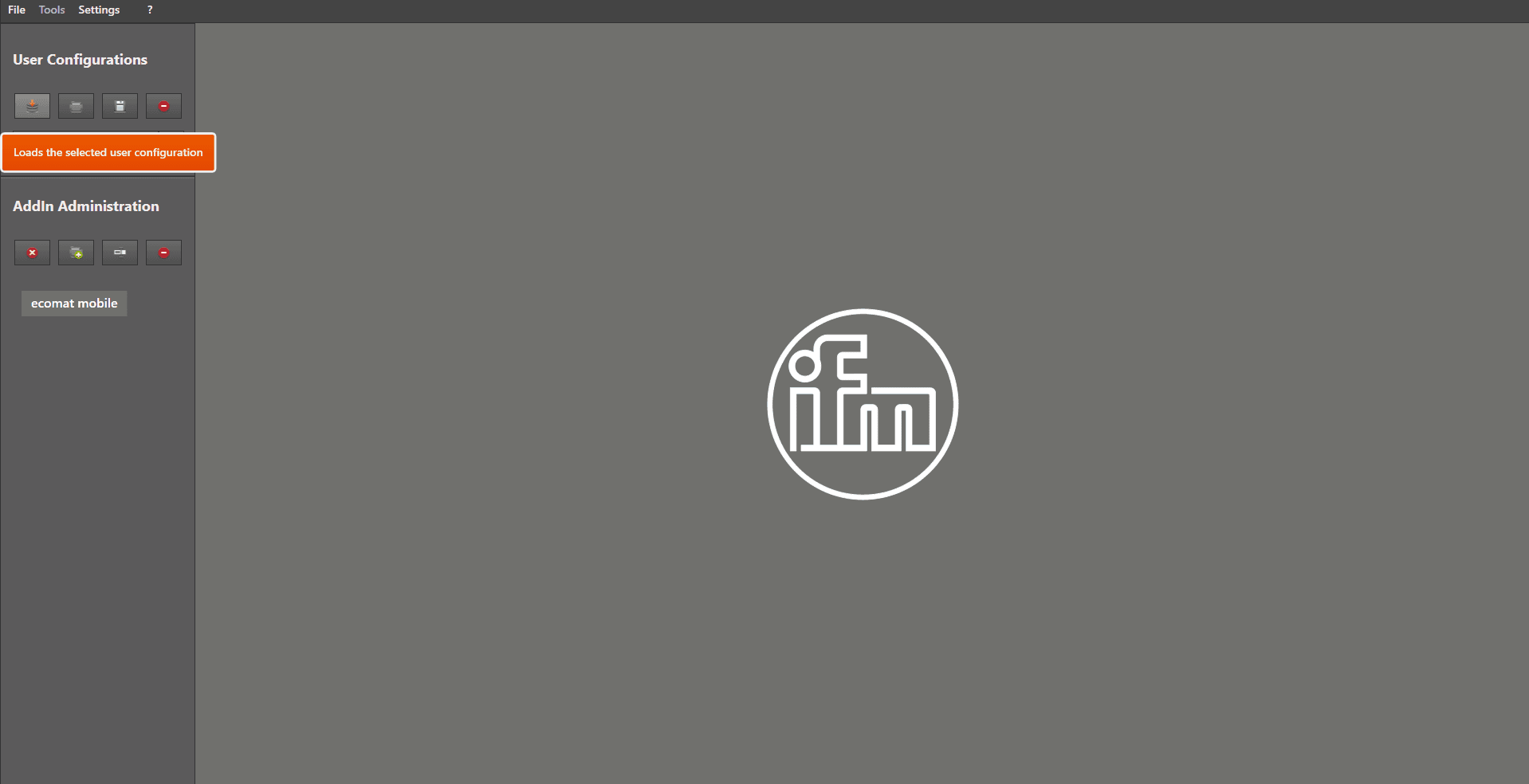
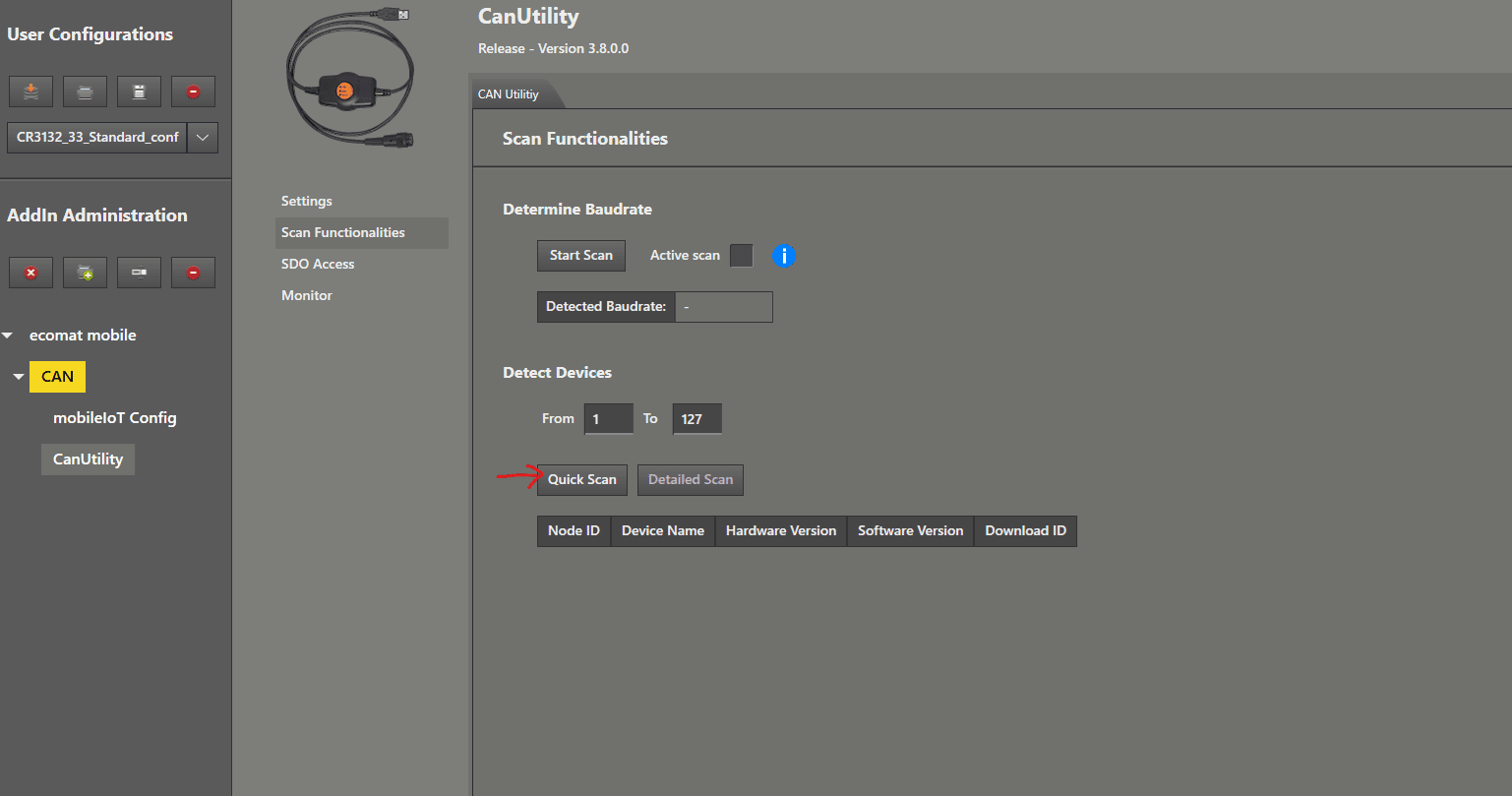
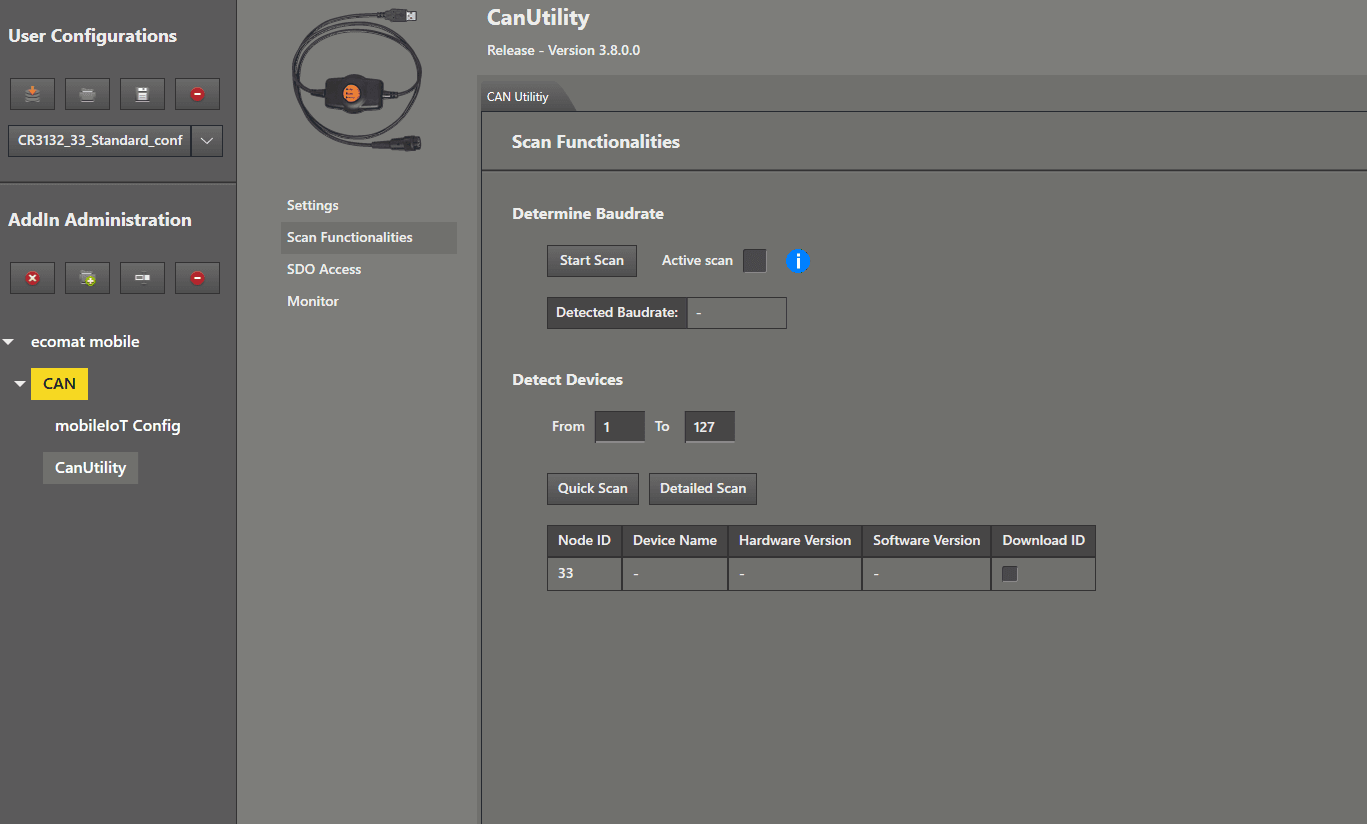
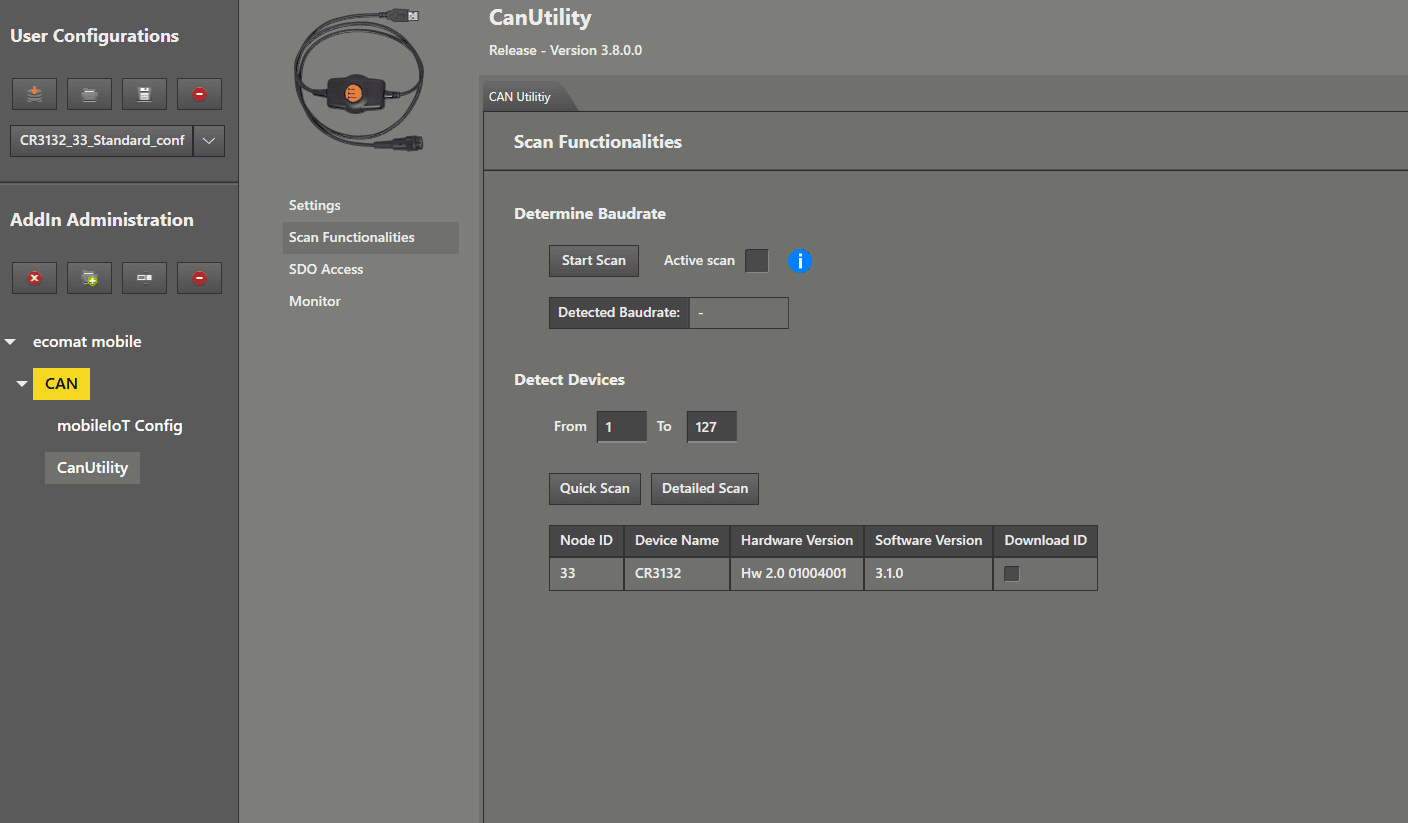
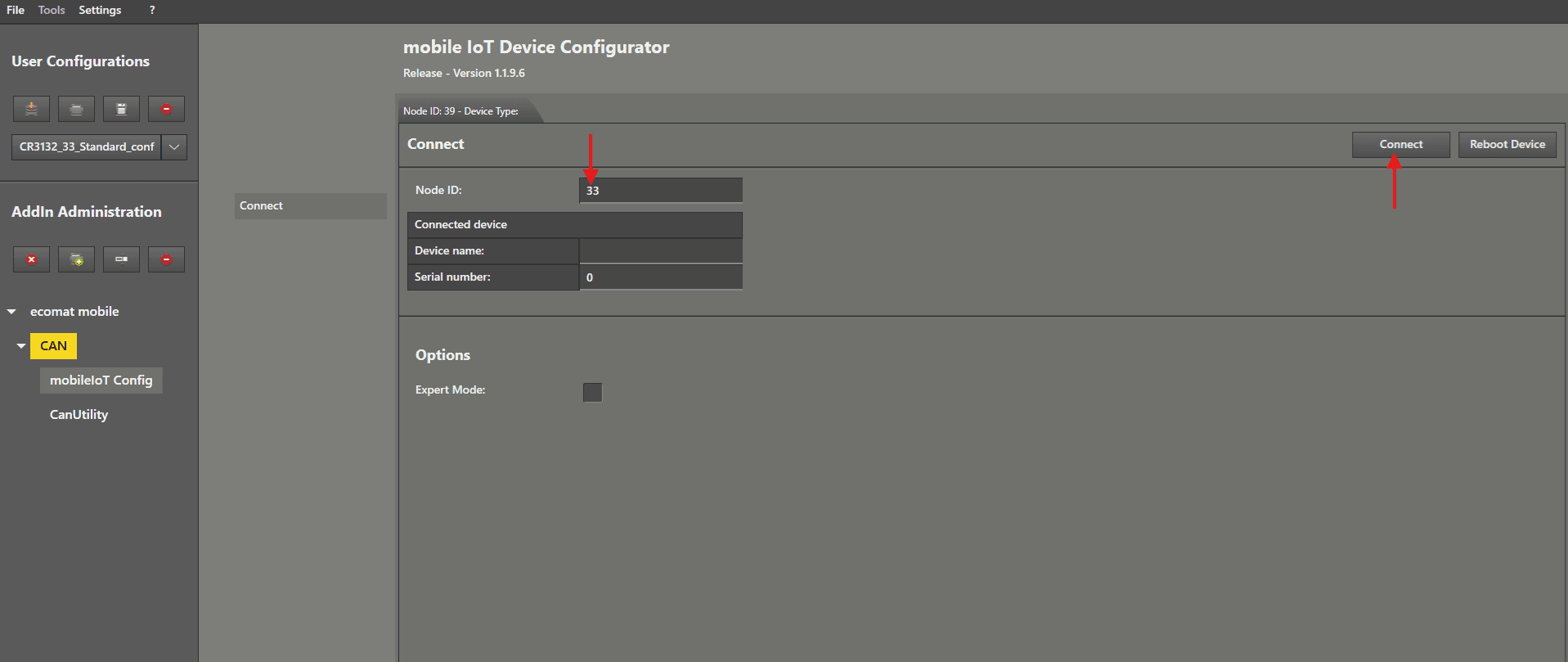
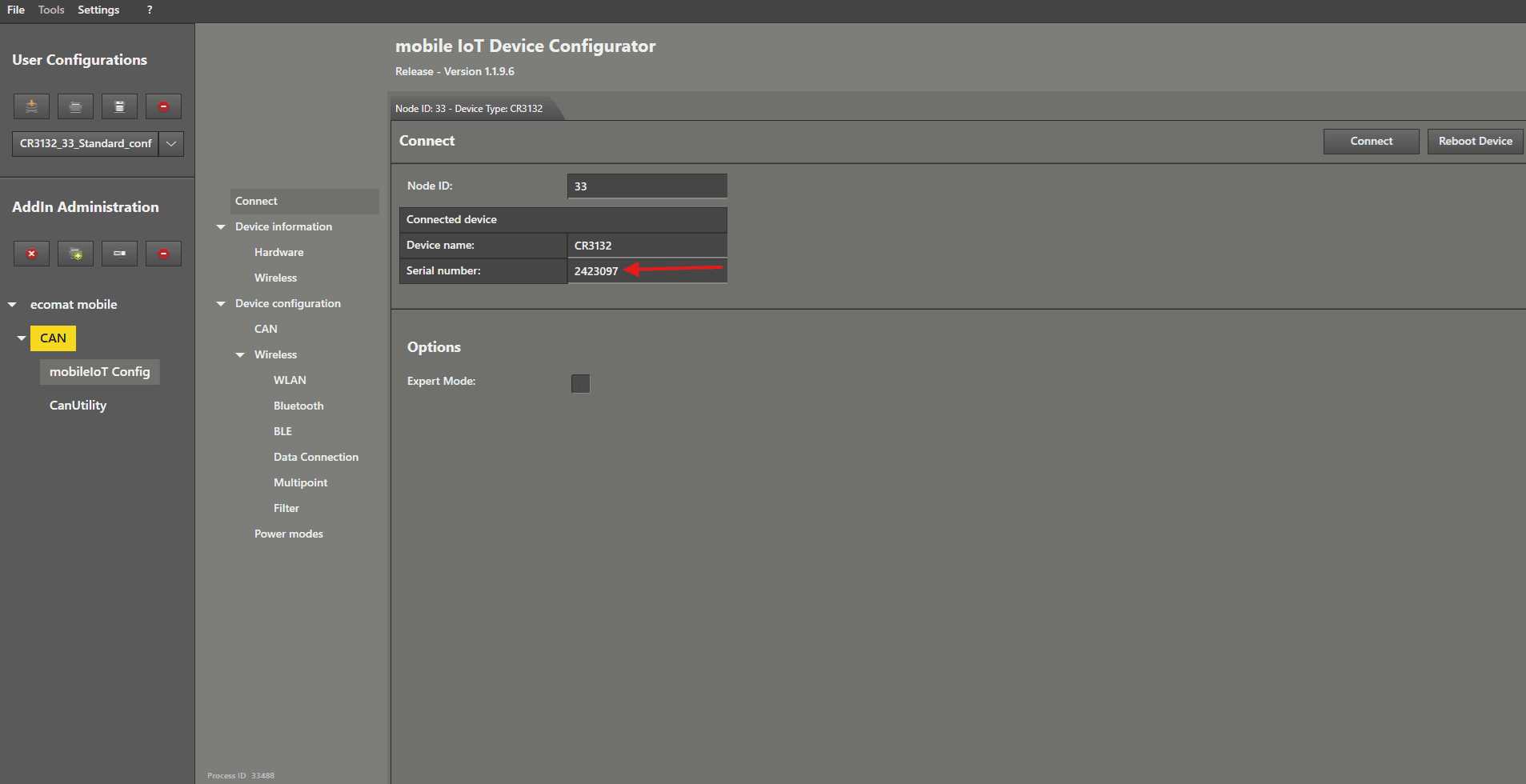
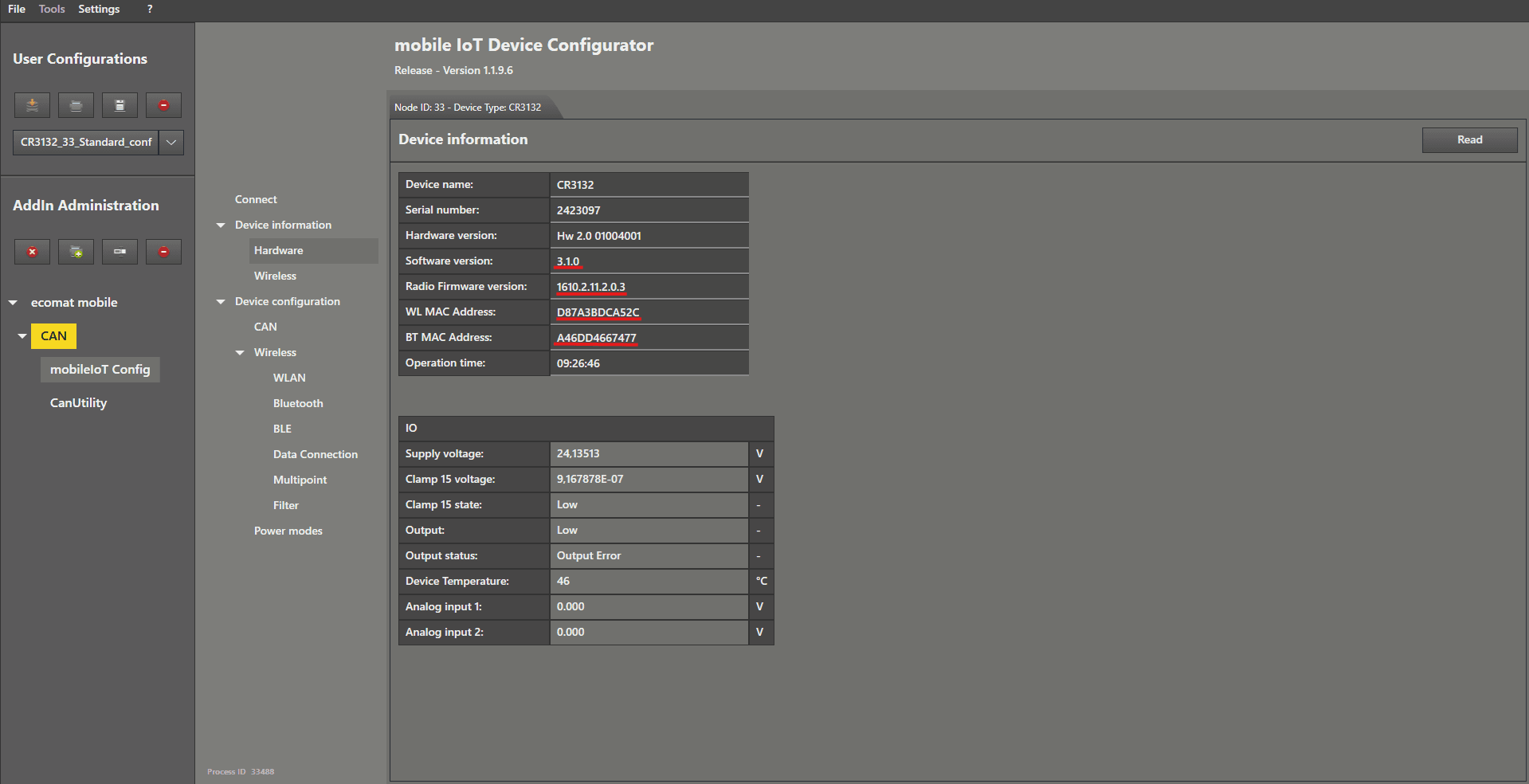
Find and Connect This guide explains how to locate your CANwireless device when it is using the default settings. First step: Check your wiring. Open the MaintenanceTool and load the standard configuration from the first guide. Left mouse click on “ CanUtility ”. In the submenu, choose “ Scan Functionalities ” by clicking with the left mouse button. As the last step, left mouse click on “ Quick Scan ”. After a few seconds, a NodeID should appear in the list. Now we perform a “ Detailed Scan ” by left mouse clicking on it to get further information about the device. Now we are sure that it is our CANwireless (CR3132). We also received additional information about the hardware version and software version . Now we can move on to connect to the device by left mouse clicking on the menu item “ mobileIoT Config ”. We now enter the NodeID of the device we found into the “ Node ID ” text field and left mouse click on “ Connect ”. When the device name and serial number are displayed in the add‑in, the CANwireless is responding and we can begin the configuration. Left mouse click on " Hardware " in the menu to see the most relevant information for you if you have a support request. Now you can proceed to the next guides.