Local Firmware Update Guide
1. Purpose
2. Scope and Intended Audience
Audience
Service technicians Machine OEMs Maintenance engineers Field support staff Integrators working with CR314x or CR3158 CAN devices
Scope
A PCAN‑USB CAN interface The Proemion Firmware Programmer (v3.2.0.2 or higher) A device powered and connected to a CAN bus
Hardware installation Software configuration Gateway configuration updates OTA firmware processes
3. Safety Information
⚠️ Warning – Power Supply
Ensure that the device remains powered throughout the firmware download process.
Interrupting the power supply may cause the device to become unresponsive.
⚠️ Warning – CAN Bus Integrity
Only operate on a CAN bus when it is safe to do so.
Incorrect manipulation can interfere with machine control systems.
⚠️ Caution – Termination Resistors
A correctly terminated CAN bus (typically 120 Ω) is required for stable communication.
ℹ️ Note
Always use the recommended baud rate and communication settings for your device model.
4. Prerequisites
A CR314x or CR315x device, properly powered A PCAN‑USB CAN adapter, connected to the device’s CAN bus The correct firmware package (available via ifm.com → device search) Proemion Firmware Programmer 3.2.0.2 or higher installed A functioning CAN bus with proper termination Download for CR3158 here download the Firmware package "Firmware V4.0.0.0_01" include "Proemion Firmware Programmer " Download for CR3146 here download the Firmware package "Firmware V4.0.0.0_01" include "Proemion Firmware Programmer "
5. Pre‑Install Check
5.1 Start the Firmware Programmer
Launch Proemion Firmware Programmer on your PC.

5.2 Configure Communication Settings
Open the Communication Settings dialog.
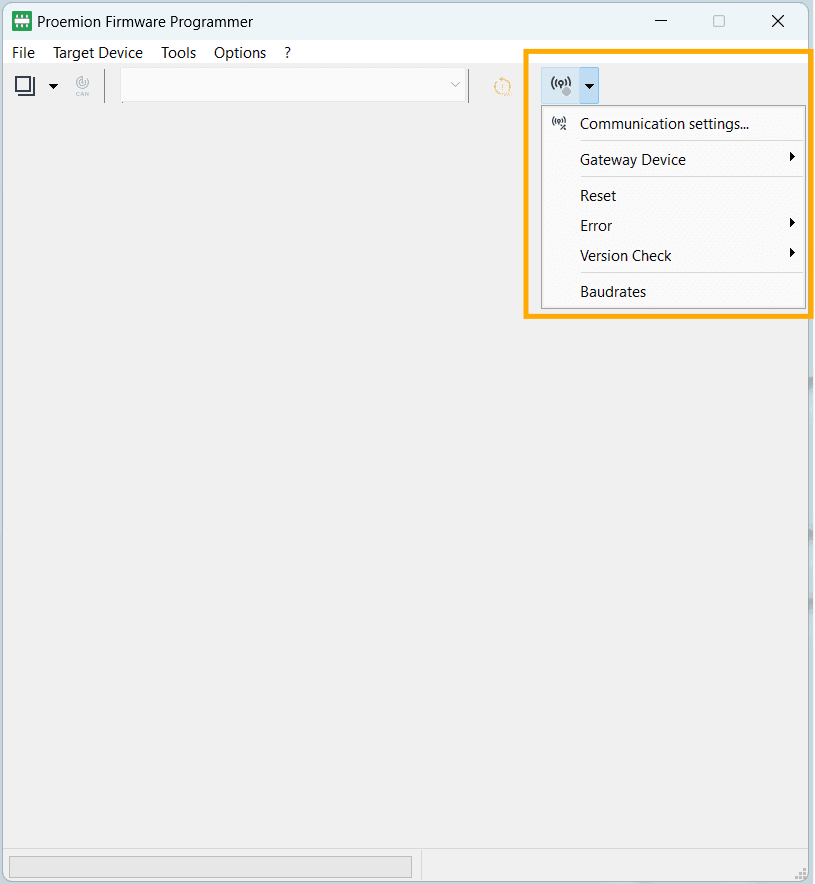
Select PCAN‑USB as the communication path.
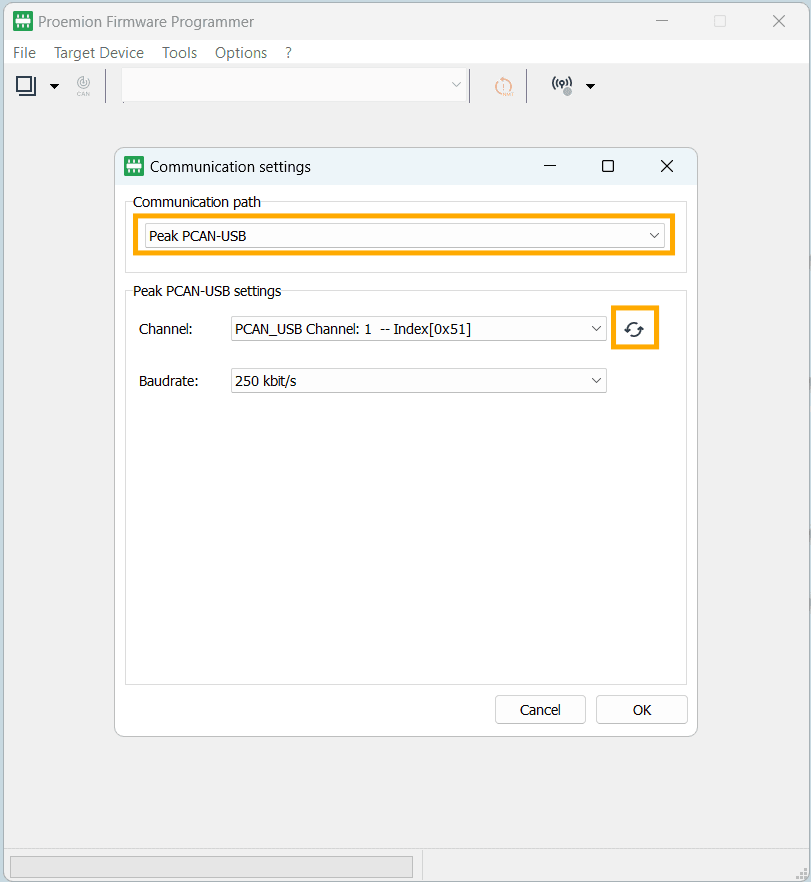
In the PCAN‑USB Settings window
- Click Refresh to detect available CAN channels
- Ensure the baud rate is set to 250 kbit/s (commonly used default).Confirm with OK.
5.3 Scan the CAN Bus
Open the Node Scan function.
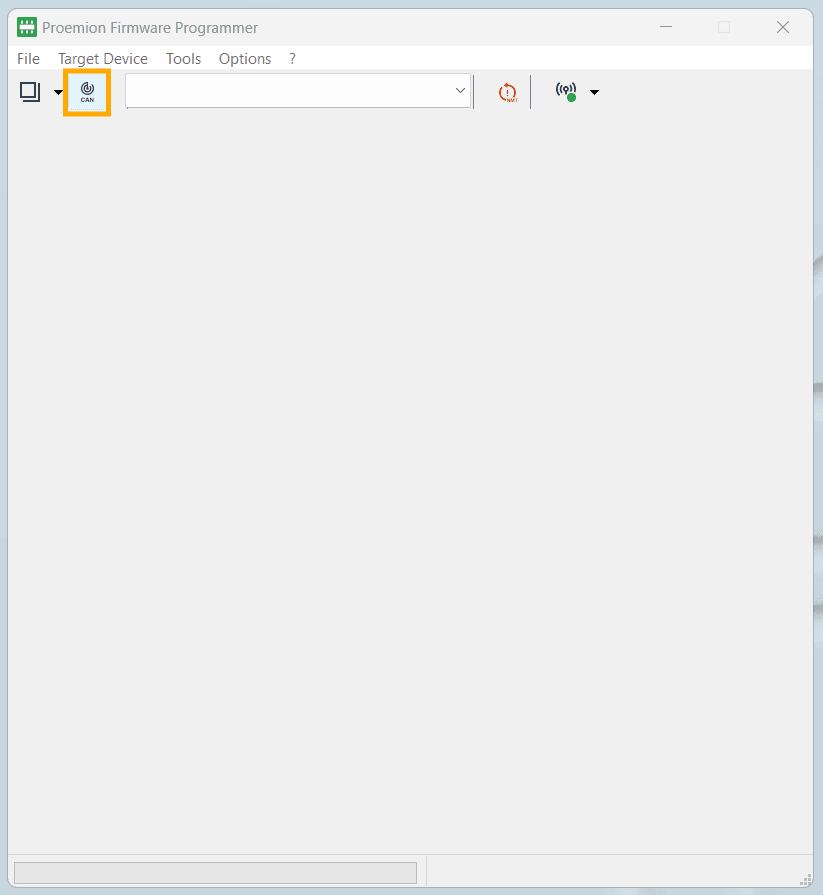
Run the scan to ensure that the device is detected on the CAN network.
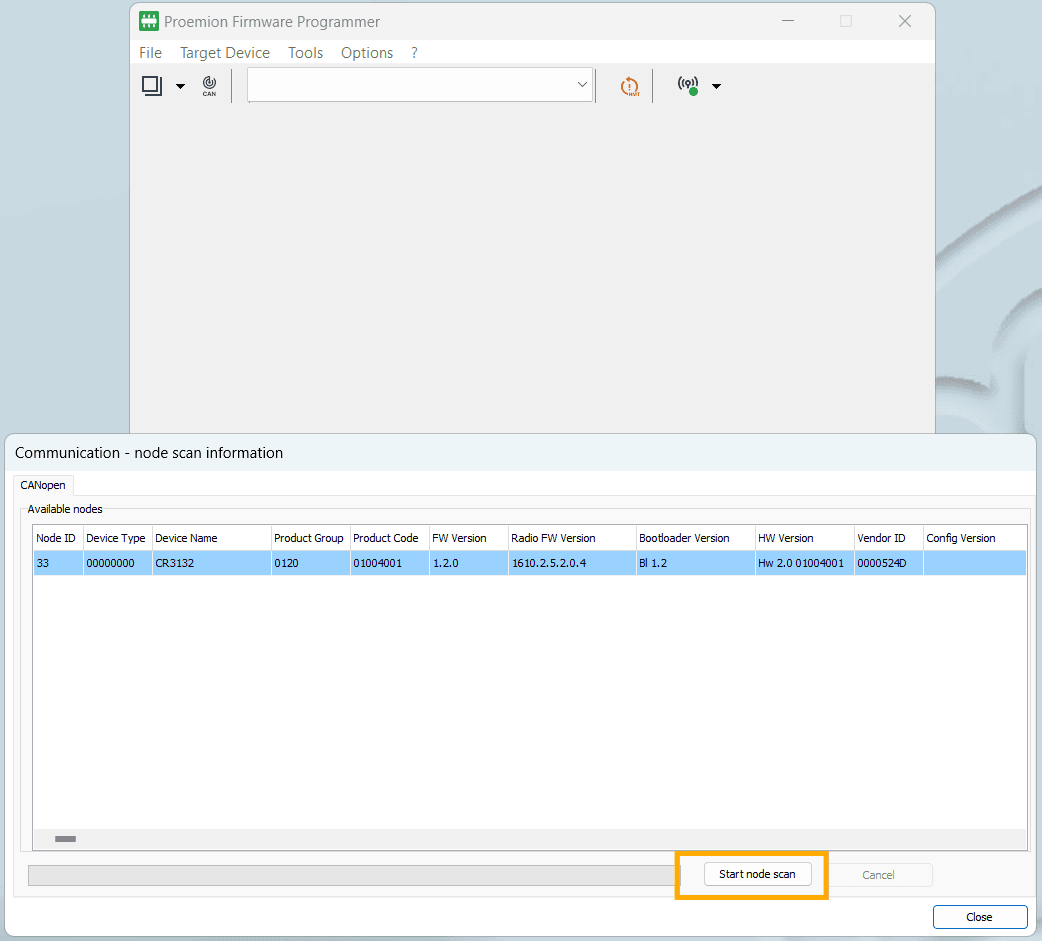
6. Installing New Firmware
6.1 Start Node Scan
Click Start Node Scan. After scanning, the tool lists all recognised CAN devices. Double‑click the device that requires the firmware update.
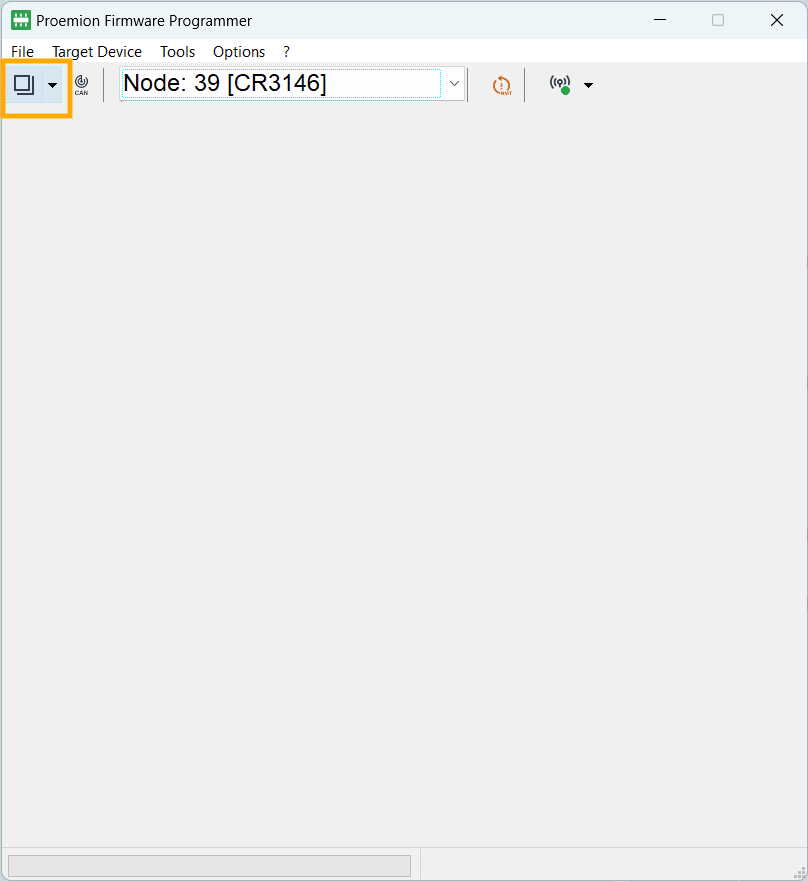
6.2 Select Firmware File
Click Open to browse for the firmware file.
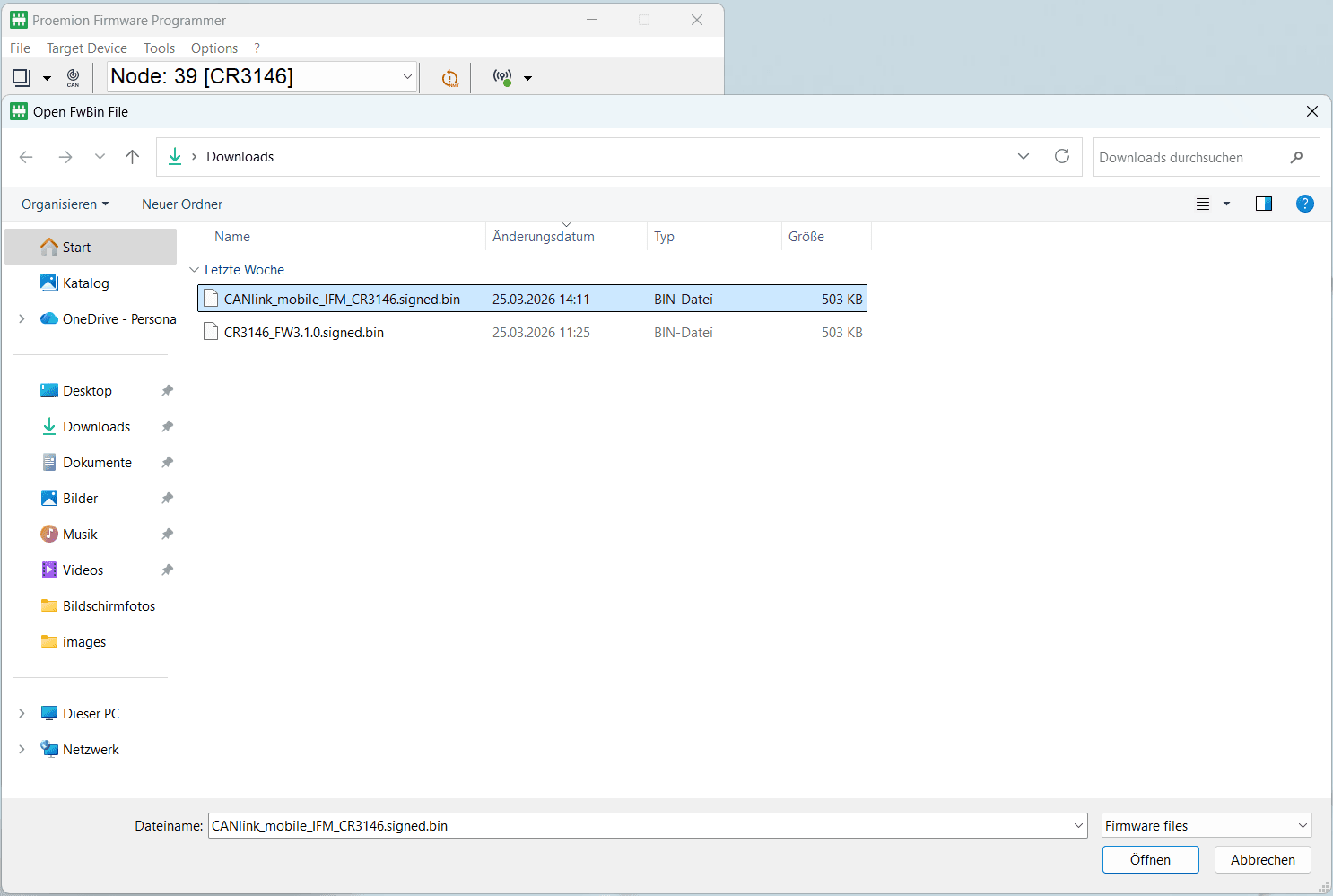
Verify that the correct firmware version appears in the Firmware section.
6.3 Search for Targets
Click Search for Targets.
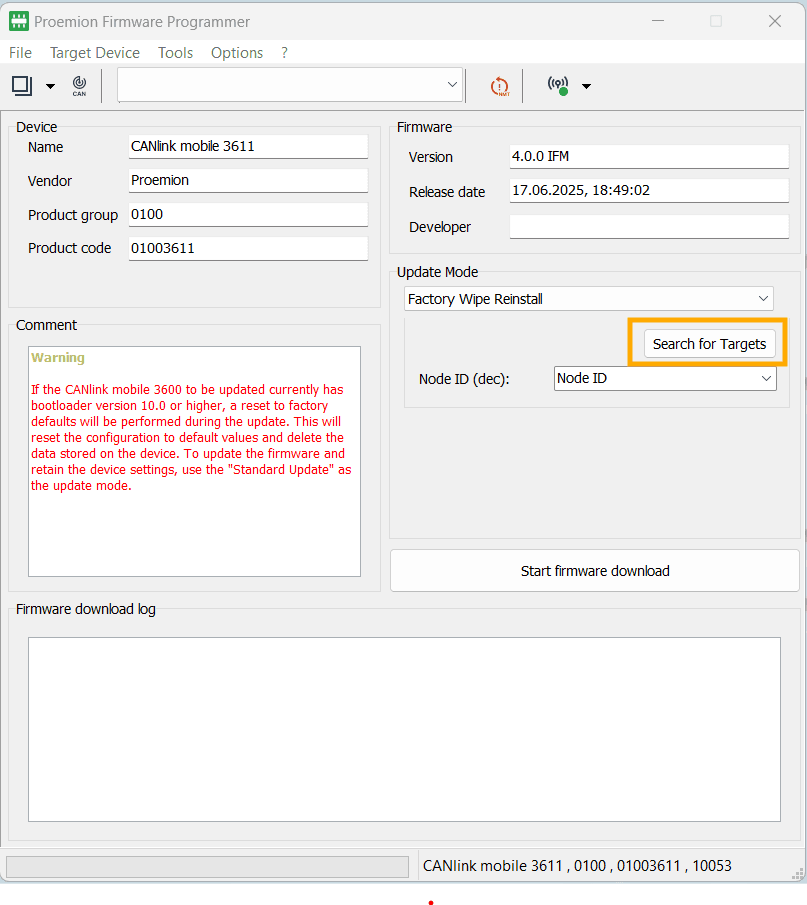
The tool displays the detected target devices along with their Node IDs.
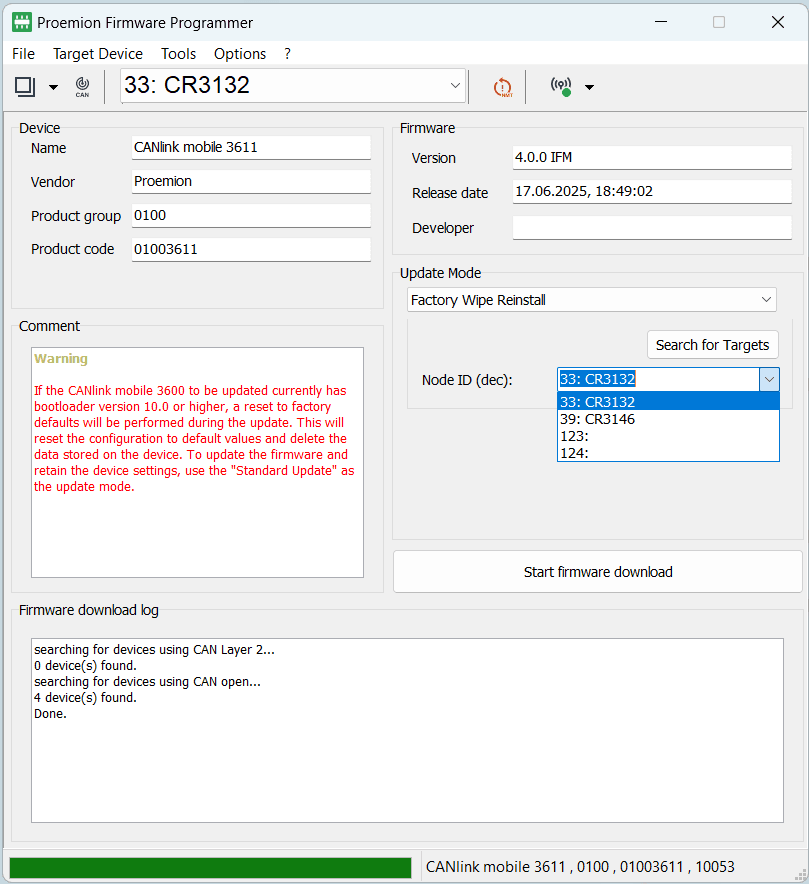
6.4 Start Firmware Download
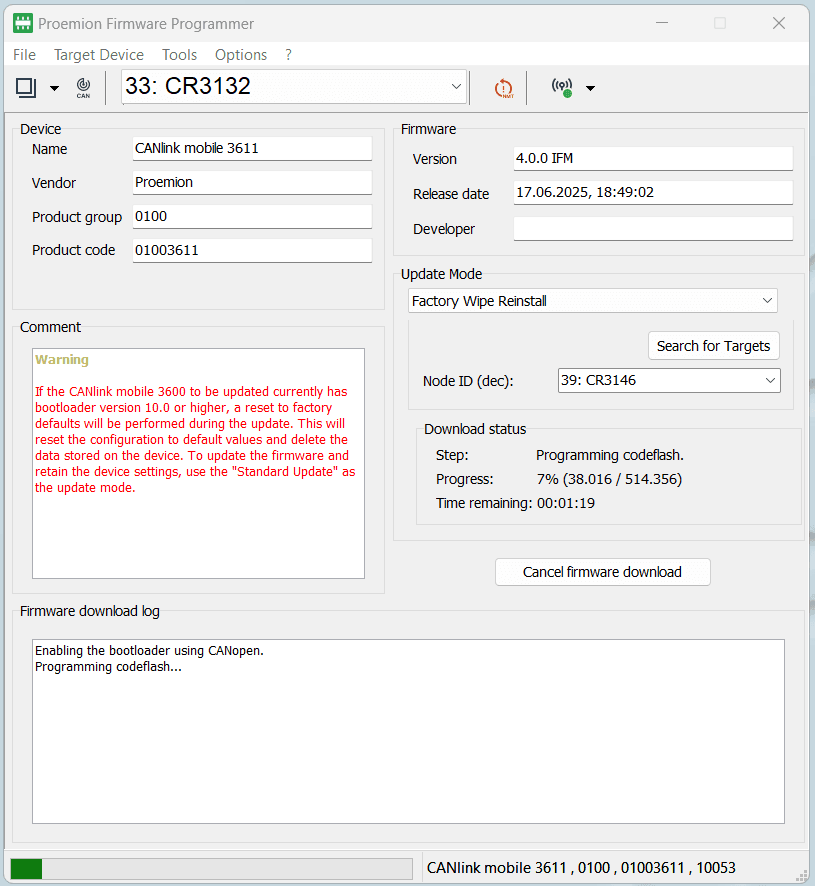
Select the correct target from the list. Click Start Firmware Download.
The tool first enables the device’s bootloader using CANopen This may take 10–20 seconds After bootloader activation, the flashing process begins Progress is displayed in the Update Mode section
7. Post‑Installation Check
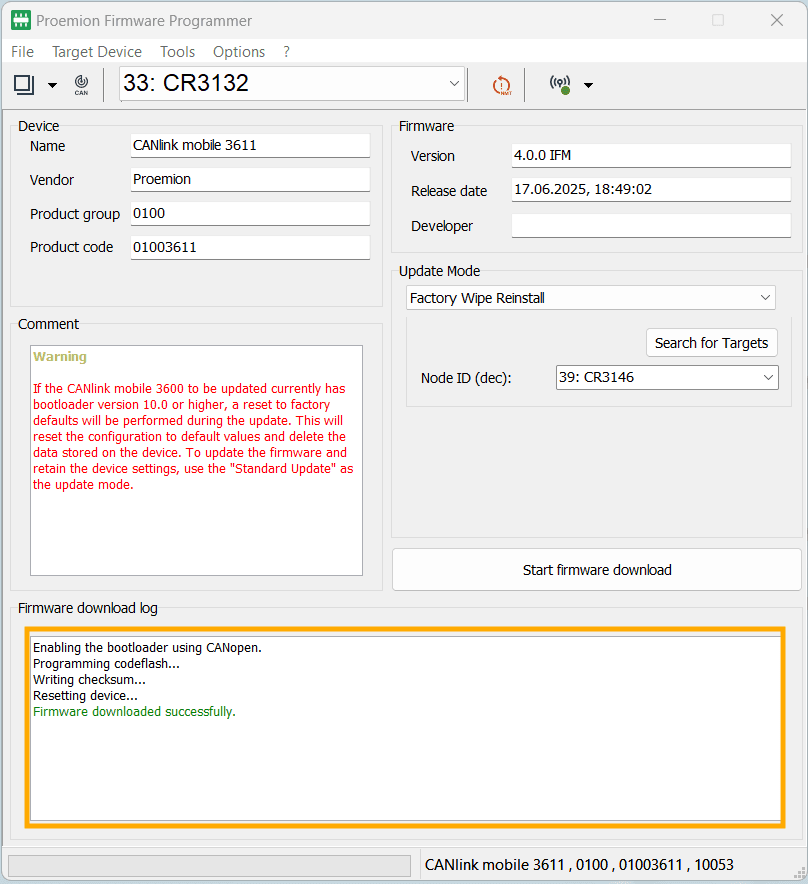
7.1 Validate Programming Success
Confirm the tool shows a successful download message in the Firmware Download Log.
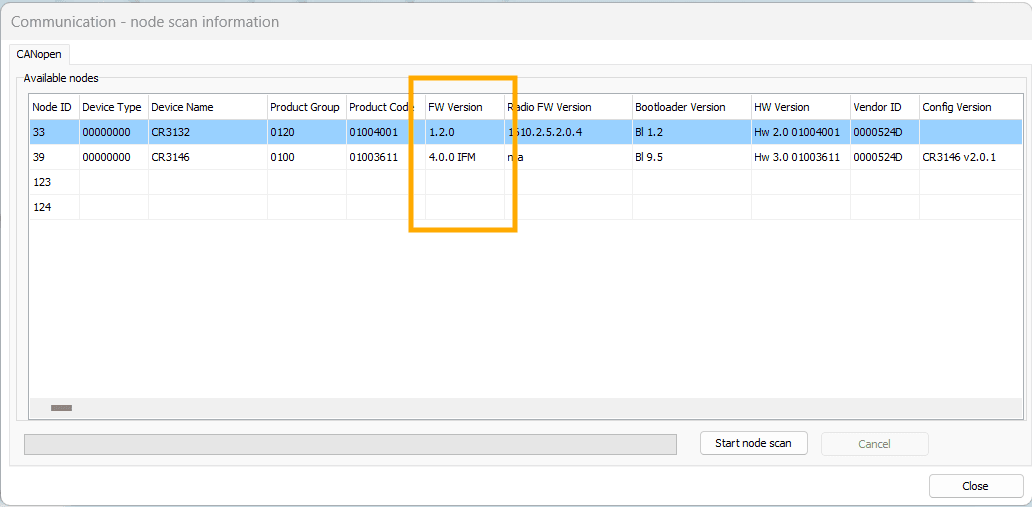
7.2 Verify Firmware Version
Open Node Scan again. Click Start Node Scan. Check the listed firmware version(s) to ensure the device reports the updated version.
8. Troubleshooting
Issue: Device not detected on the CAN bus
Possible causes:
- The device is not powered
- Incorrect CAN wiring
- Missing or incorrect termination resistorRecommended actions:
- Verify that the device is powered
- Check CAN‑H and CAN‑L wiring
- Ensure correct CAN bus termination (typically 120 Ω)
Issue: No CAN channel visible in the tool
Possible causes:
- PCAN‑USB adapter is not connected
- PCAN‑USB driver is missing or malfunctioning
Recommended actions:
- Verify the USB connection
- Check that PCAN‑USB drivers are installed and active
- Reconnect the adapter and refresh available channels
Issue: Firmware download does not start
Possible causes:
- Incorrect device or node selected
- CAN bus collisions due to multiple active nodes
Recommended actions:
- Repeat the node scan
- Ensure the correct target device is selected
- If possible, perform the update on an isolated CAN bus
Issue: Update process stalls during bootloader activation
Possible causes:
- Unstable CAN communication
- Incorrect baud rate configurationRecommended actions:
- Confirm the baud rate is set to 250 kbit/s (unless otherwise specified)
- Check physical CAN connections and cable integrity
- Retry the firmware update process
Issue: Device reports old firmware after update
Possible causes:
- Firmware update was interrupted or incompleteRecommended actions:
- Repeat the firmware update procedure
- Confirm successful completion in the firmware download log
9. References
Proemion Firmware Programmer User Interface ifm device firmware packages (download via ifm.com) PCAN‑USB adapter documentation
10. Change Log / Document History
Version 1.0.0
Initial public release Full rewrite of the original PDF manual Content structured according to ISO-oriented digital documentation principles Grammar, terminology, and procedural clarity improved