Firmware Update

This guide is all about the firmware update.


Safety Information

⚠️ Warning – Power Supply
Ensure that the device remains powered throughout the firmware download process.
Interrupting the power supply may cause the device to become unresponsive.


⚠️ Warning – CAN Bus Integrity
Only operate on a CAN bus when it is safe to do so.
Incorrect manipulation can interfere with machine control systems.


⚠️ Caution – Termination Resistors
A correctly terminated CAN bus (typically 120 Ω) is required for stable communication.


ℹ️ Note
Always use the recommended baud rate and communication settings for your device model.


Firmware Update
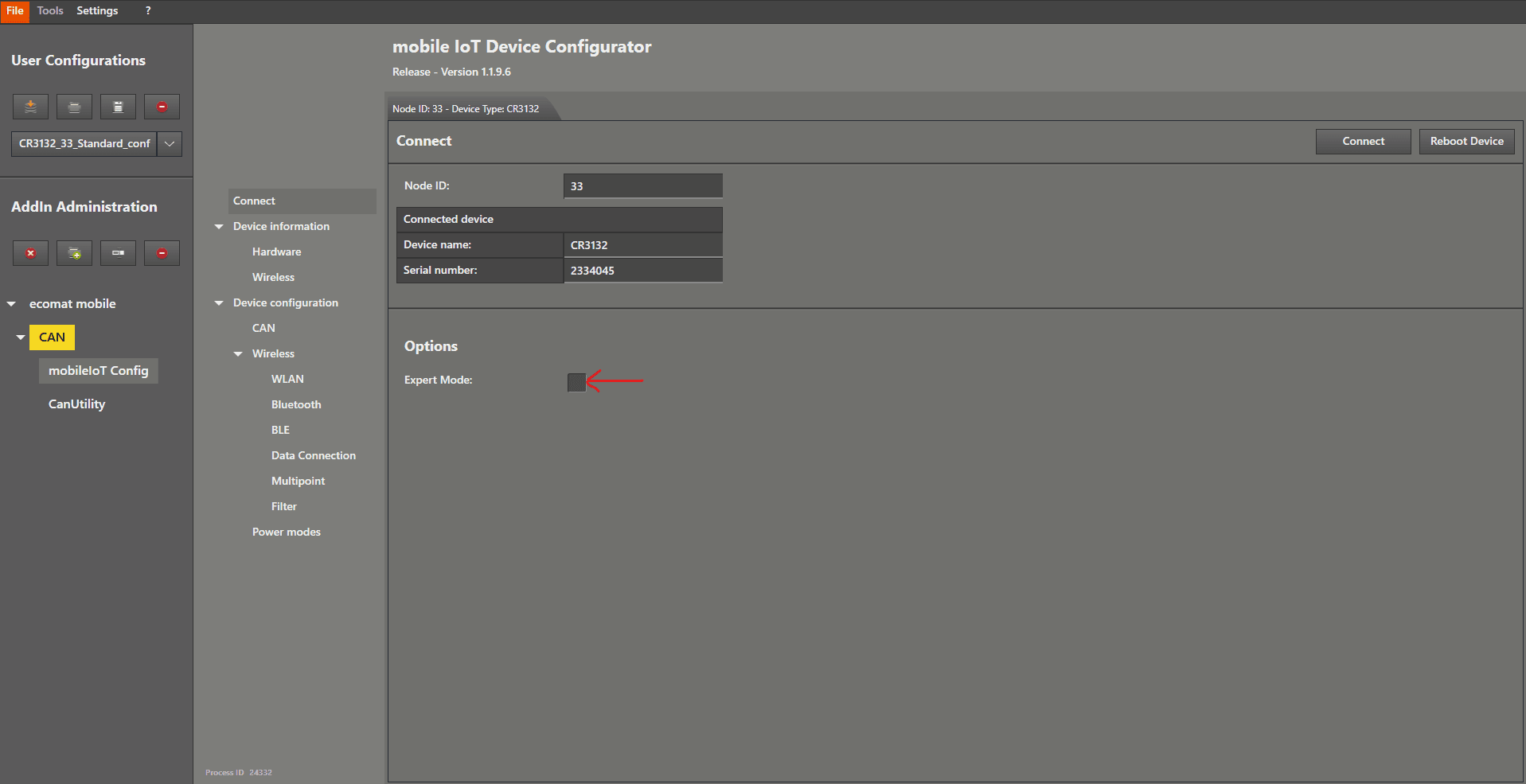
Start by connecting the device and downloading the firmware package from the IFM website .

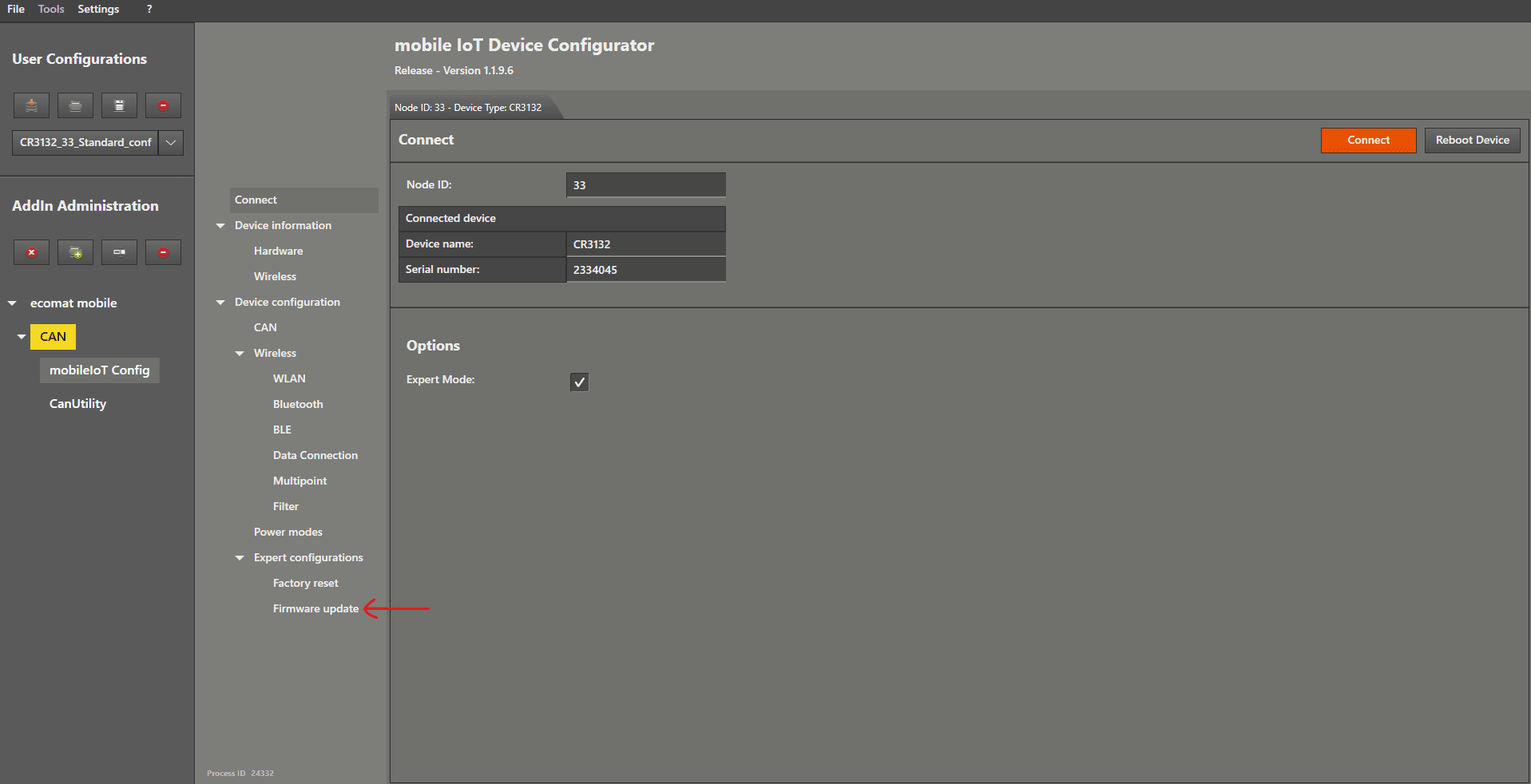
After you have connected the device properly, enable “Expert Mode” by ticking the checkbox.


Now there are additional options available in the menu.

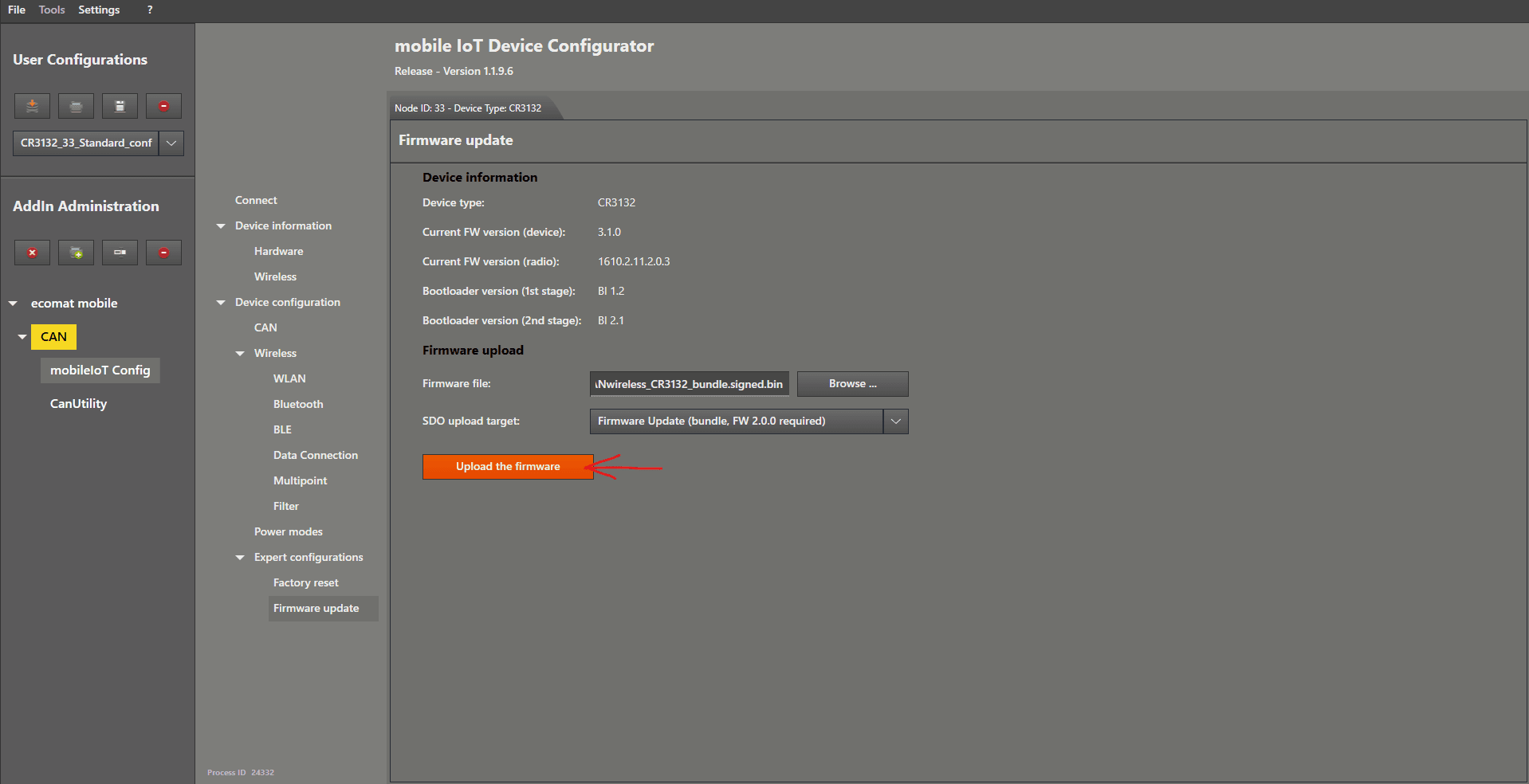
Left mouse click on “ Firmware update ” to open the settings.


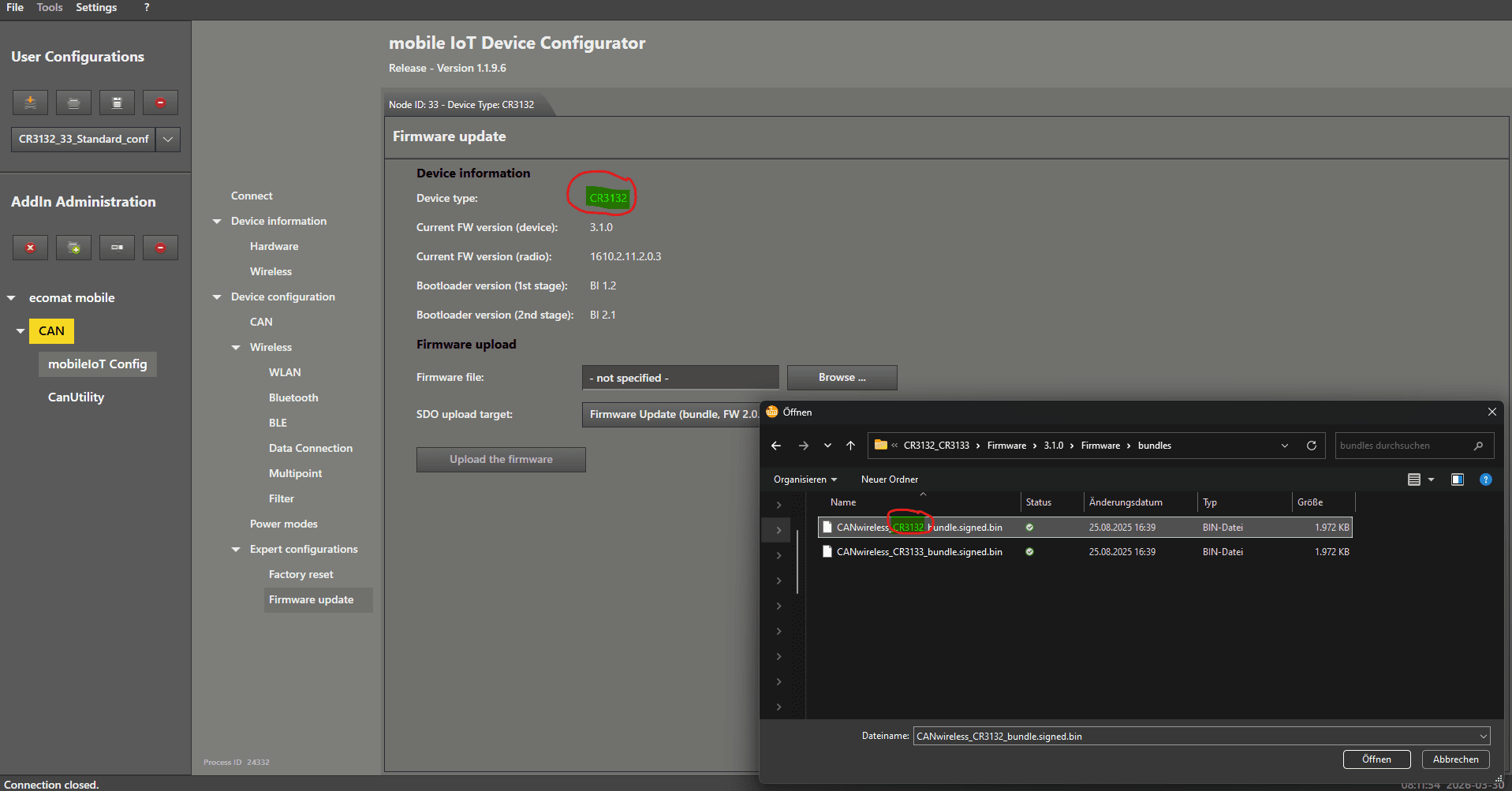
We can now check which device we have in the top line of the Firmware Update window, labeled “Device type”.

If your device has no external antenna connectors, it is a CR3132.

If it does have external antenna connectors, it is a CR3133.


In the downloaded firmware package, you will also find update files that are labeled with the corresponding device type.

Make sure you have selected the correct one.


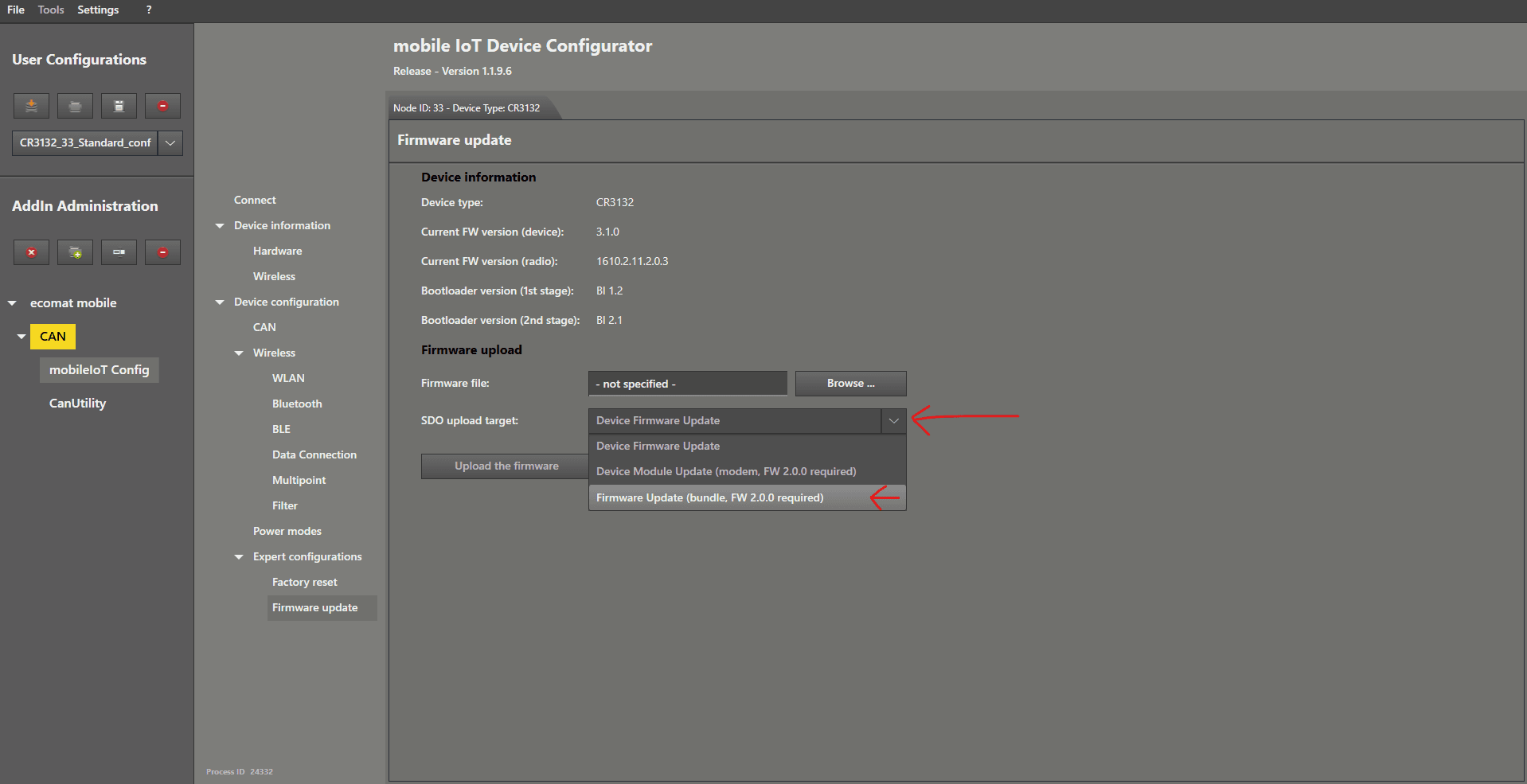
Now we choose the update target in the device by left mouse clicking on the dropdown menu on the right‑hand side of “ SDO upload target ”.

Select “ Firmware Upload (bundle, FW 2.0.0 required) ”.


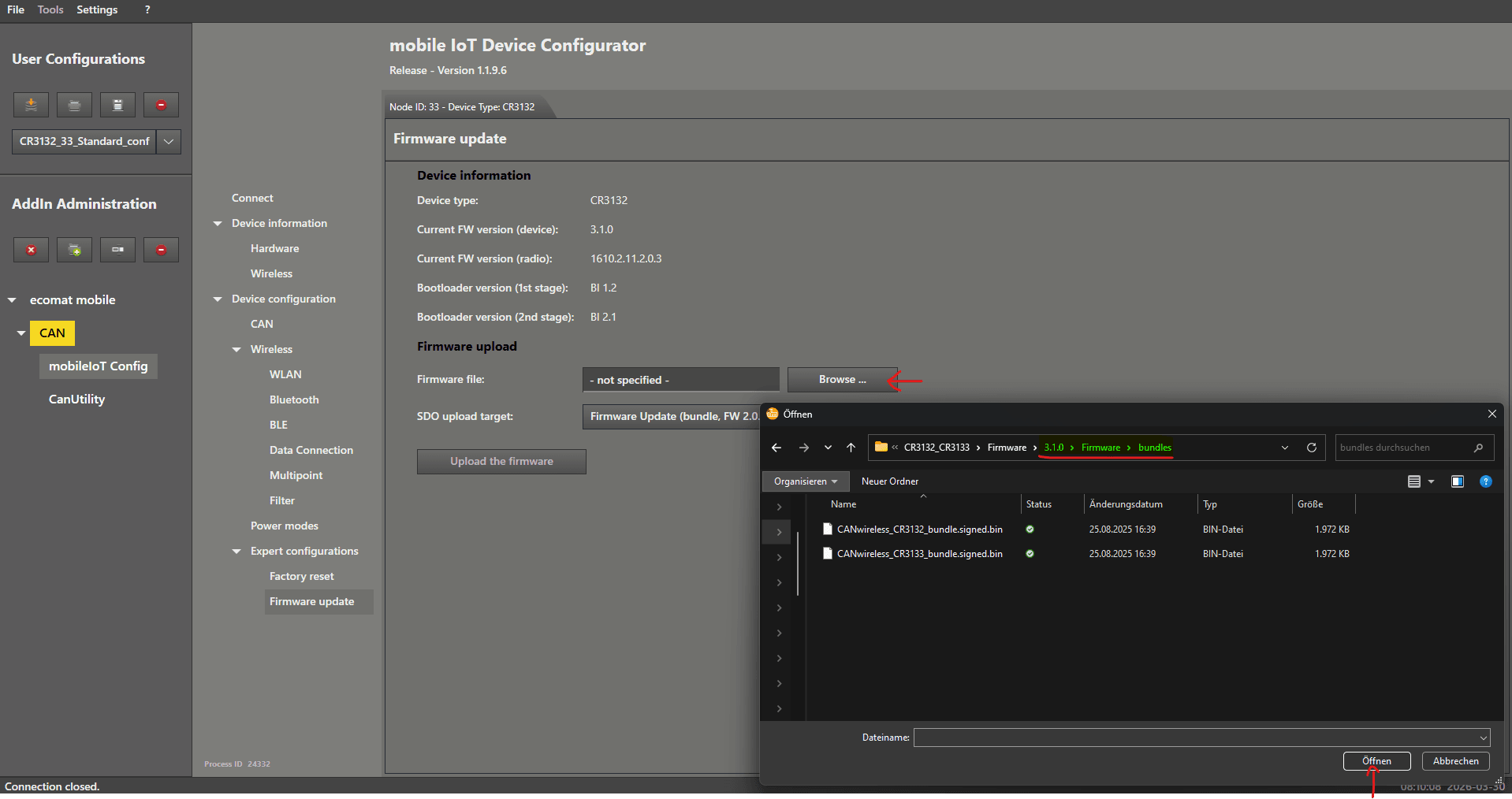
Next we choose the firmware file. That you have downloaded from the webpage and unzipped.

You find the bundle Firmware in the direction "Firmware\bundles".

Then choose the bundle for you device by type.


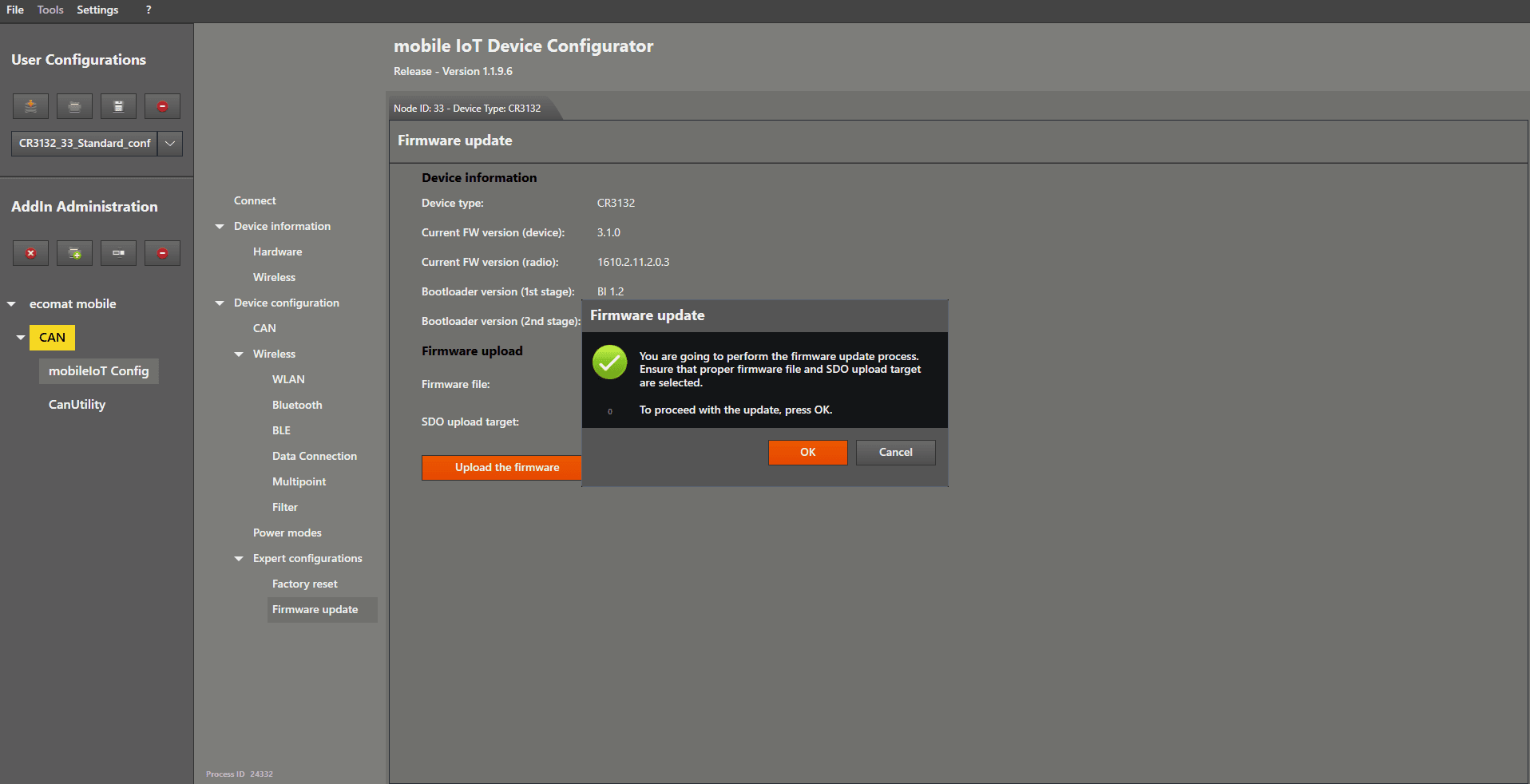
After you have selected the file, left mouse click on “Upload the firmware”.

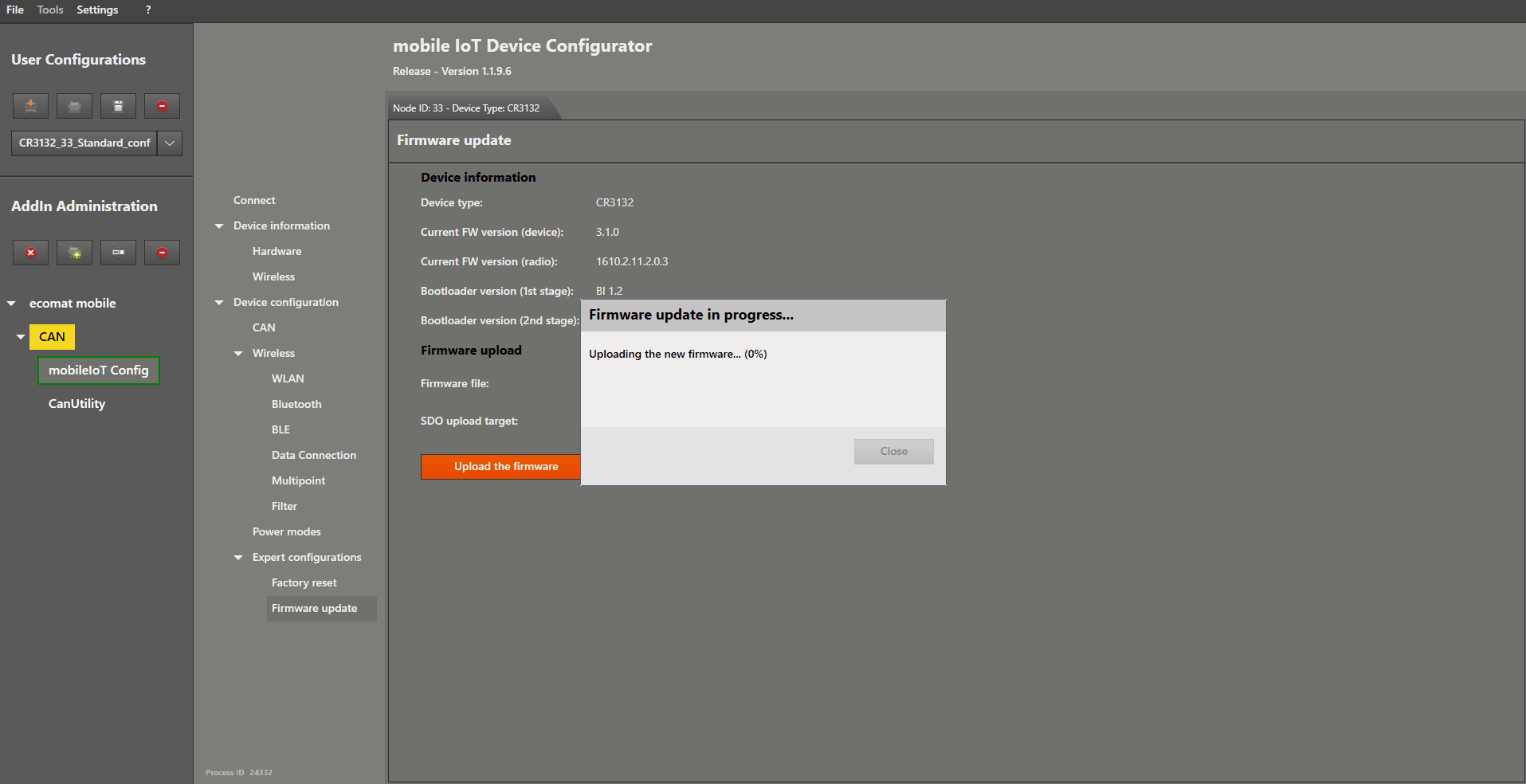
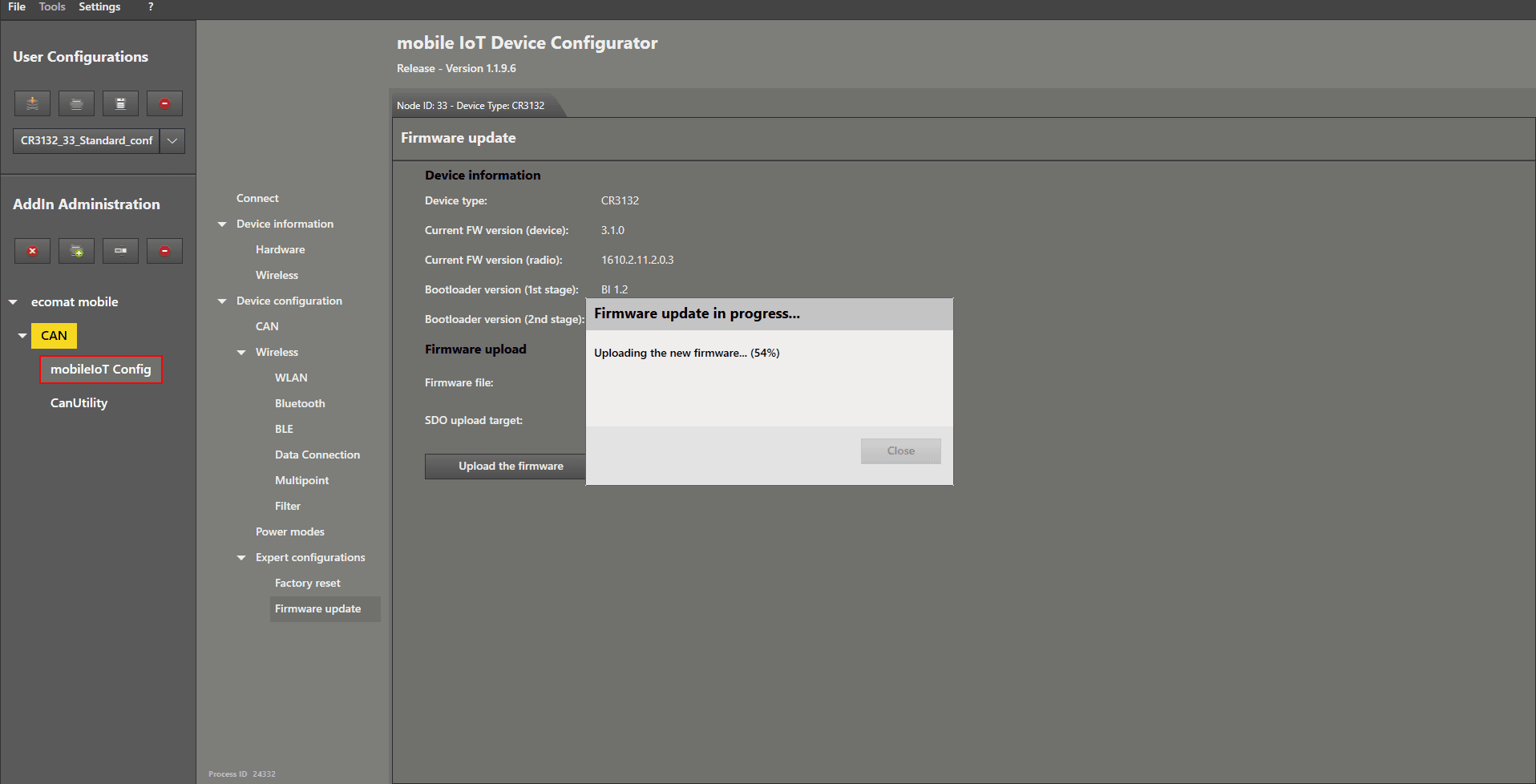
This process can take some time (approximately 10–30 minutes).


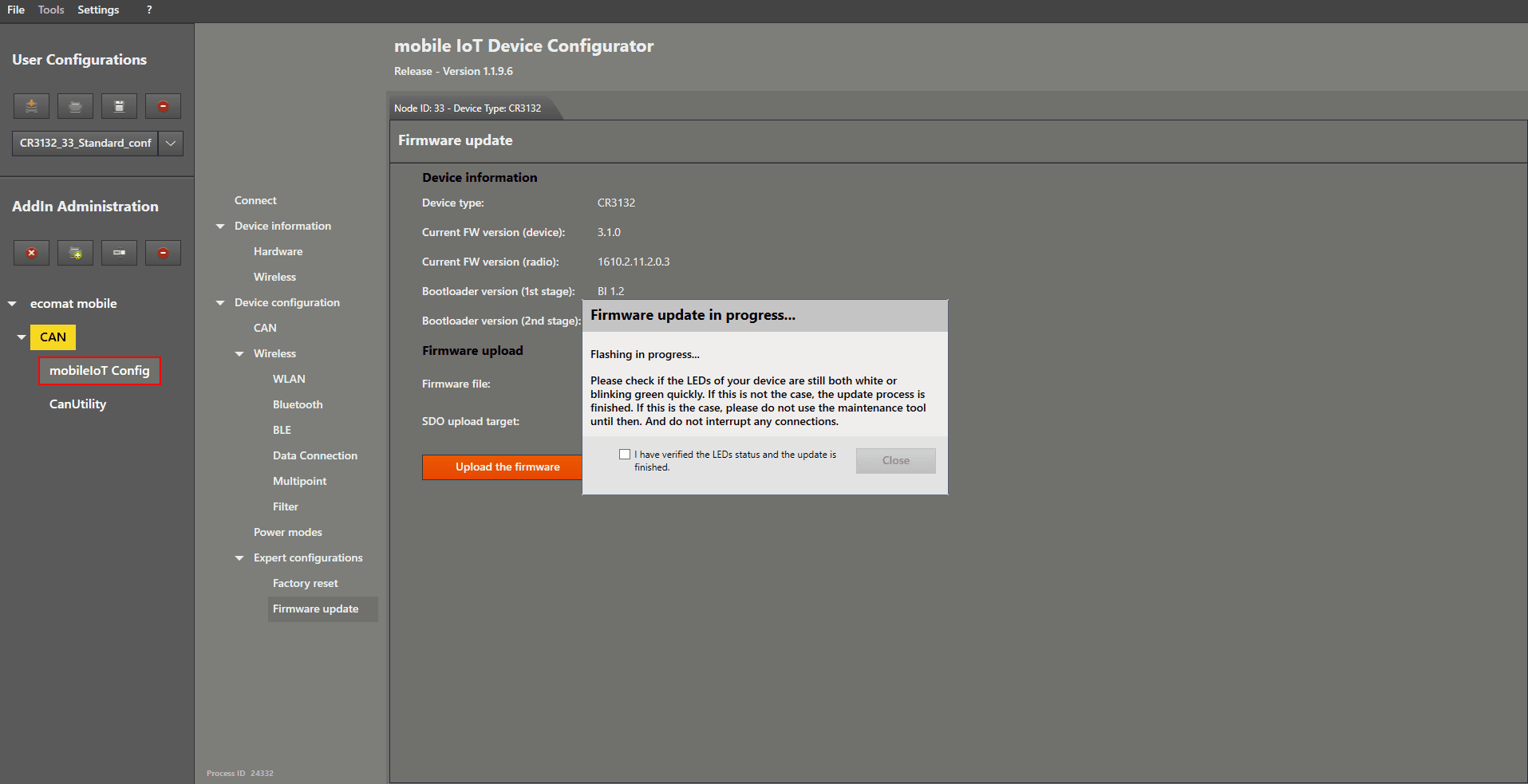
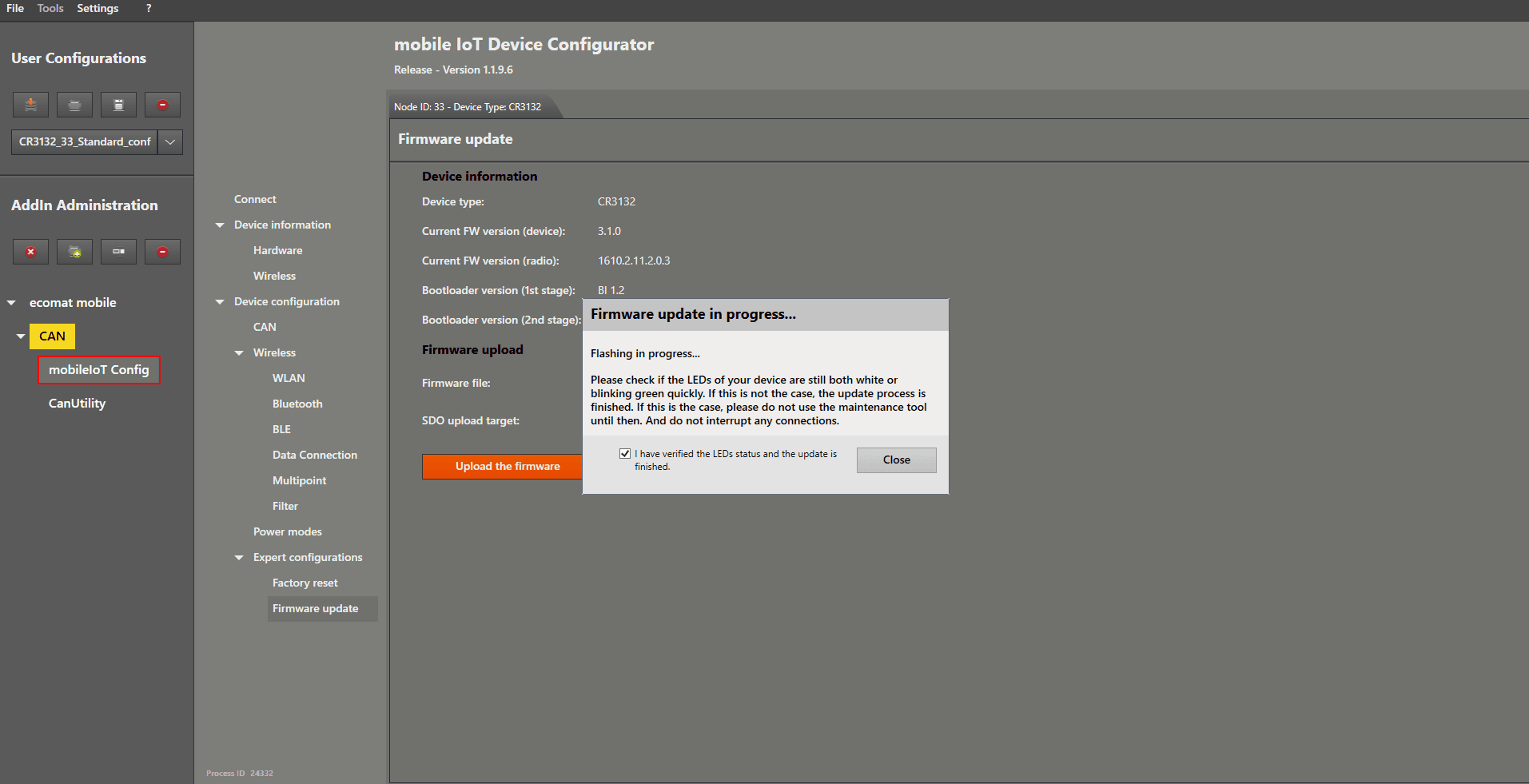
After a while, a window will appear. Read the instructions carefully and check the LEDs on your device to decide what to do next.

If you are unsure, simply wait a little longer to make sure the installation process has fully completed.


When you are sure that the process is finished, check the box in the window and left mouse click on “ Close to complete the procedure.


The update procedure is now finished.

Please continue with the Factory Reset guide to ensure that your device will operate correctly again after the update.

A factory reset is strongly recommended after every firmware update.