This guide explains how to create a standard configuration with MNTT for using CANwireless in order to gain easy access to the device and avoid having to load everything manually each time MNTT is started.
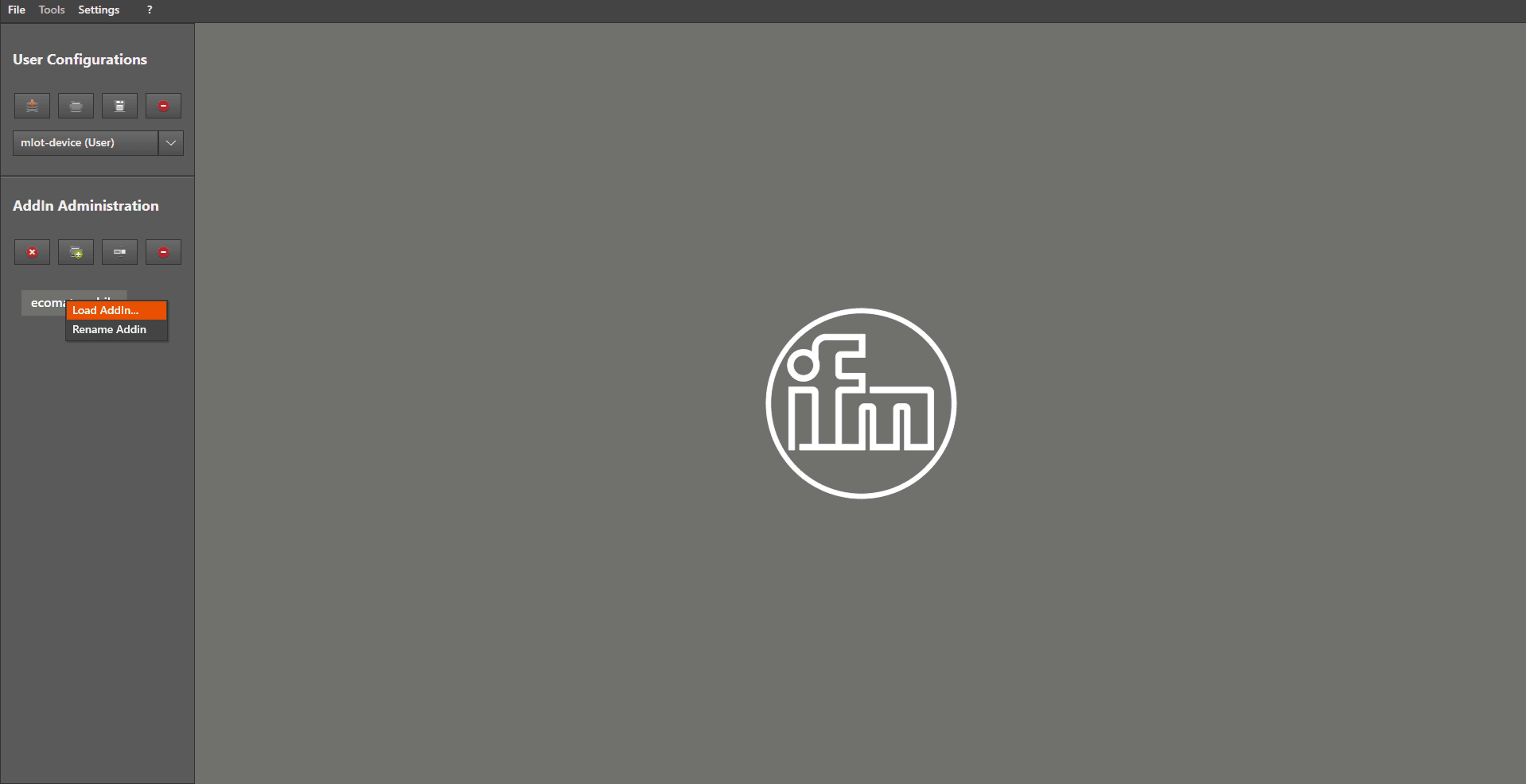
Always use the right mouse button to open this menu.
Left mouse click on “ Load Addin... ”
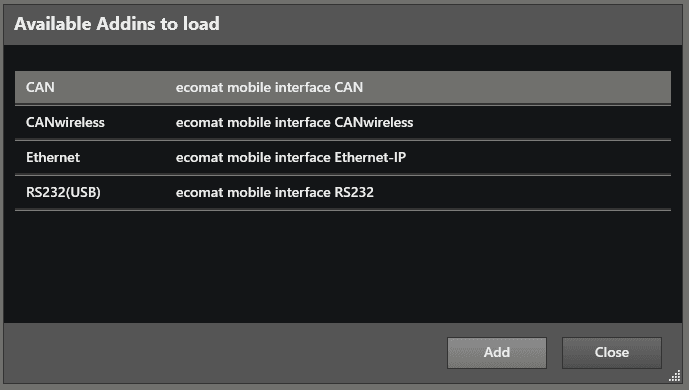
A window opens: “ Available Addins to load ”.
Left mouse click on “ CAN ”, then left mouse click on “ Add ”.
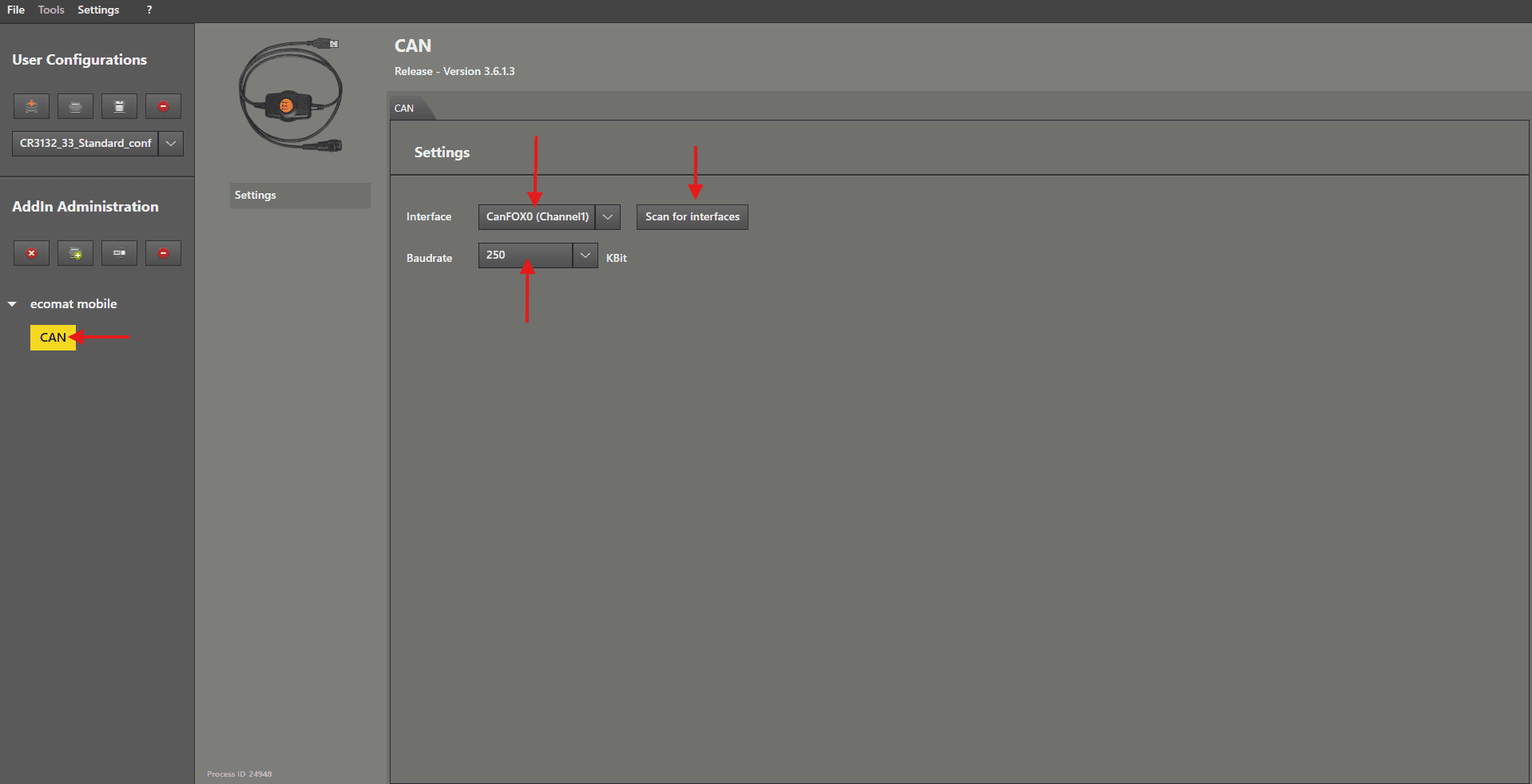
Left mouse click on “ CAN ”.
Now you can see the CAN settings.
First, left mouse click on “ Scan for interfaces ” (hopefully your CANfox or CAN‑PEAK is connected).
You can now choose your interface in the interface dropdown menu (we recommend the CANfox).
As the last step, choose the baud rate “ 250 kbit ”, which is the default for the CANwireless.
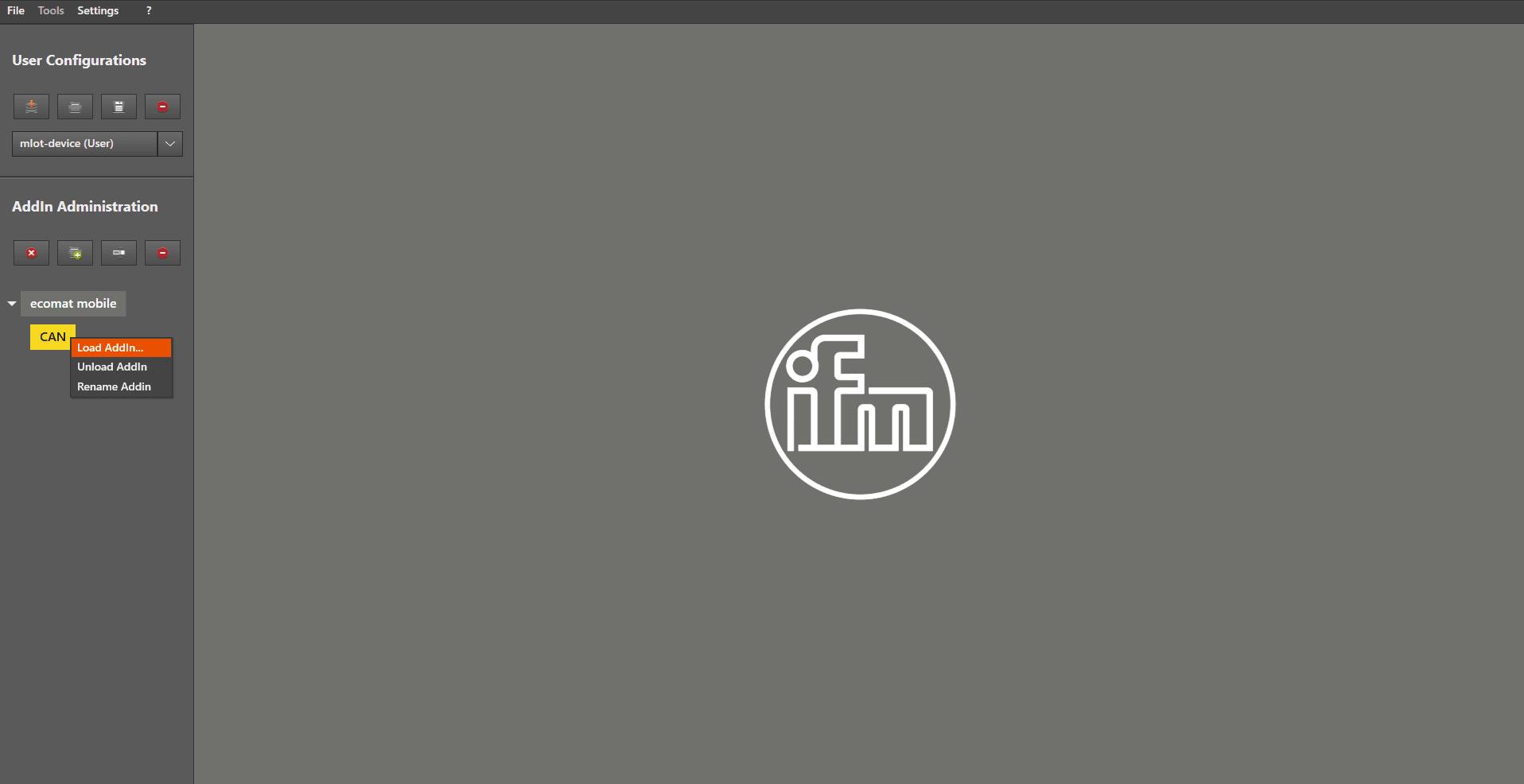
“CAN” appears under “ ecomat mobile ”.
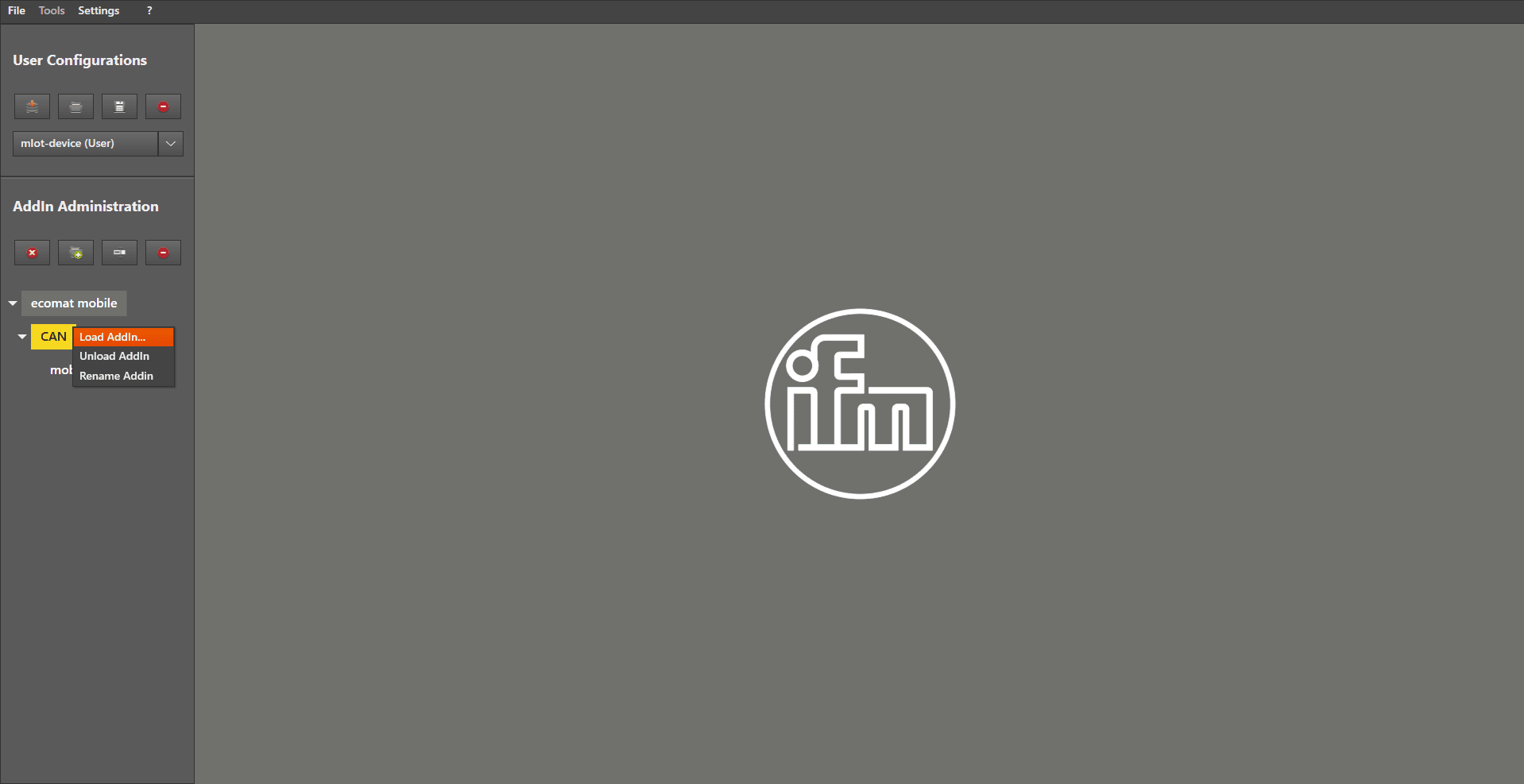
Right mouse click on “ CAN ”.
Left mouse click on “ Load Addin... ”
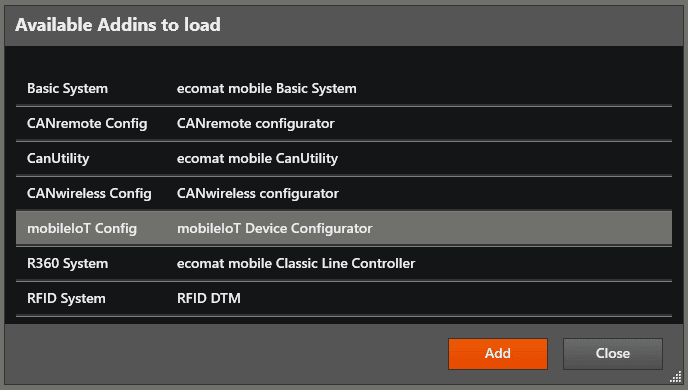
A window opens: “ Available Addins to load ”.
Left mouse click on “ mobileIoT Config ”, then left mouse click on “ Add ”.
“ mobileIoT Config ” appears under “ ecomat mobile ”.
Right mouse click on “ CAN ”.
Left mouse click on “ Load Addin... ”
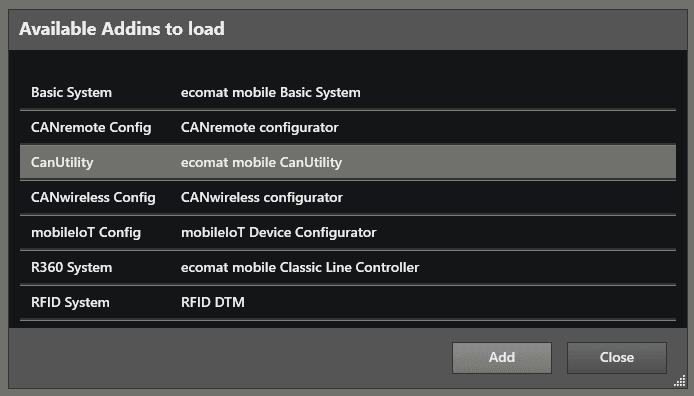
A window opens: “ Available Addins to load ”.
Left mouse click on “ CanUtility ”, then left mouse click on “ Add ”.
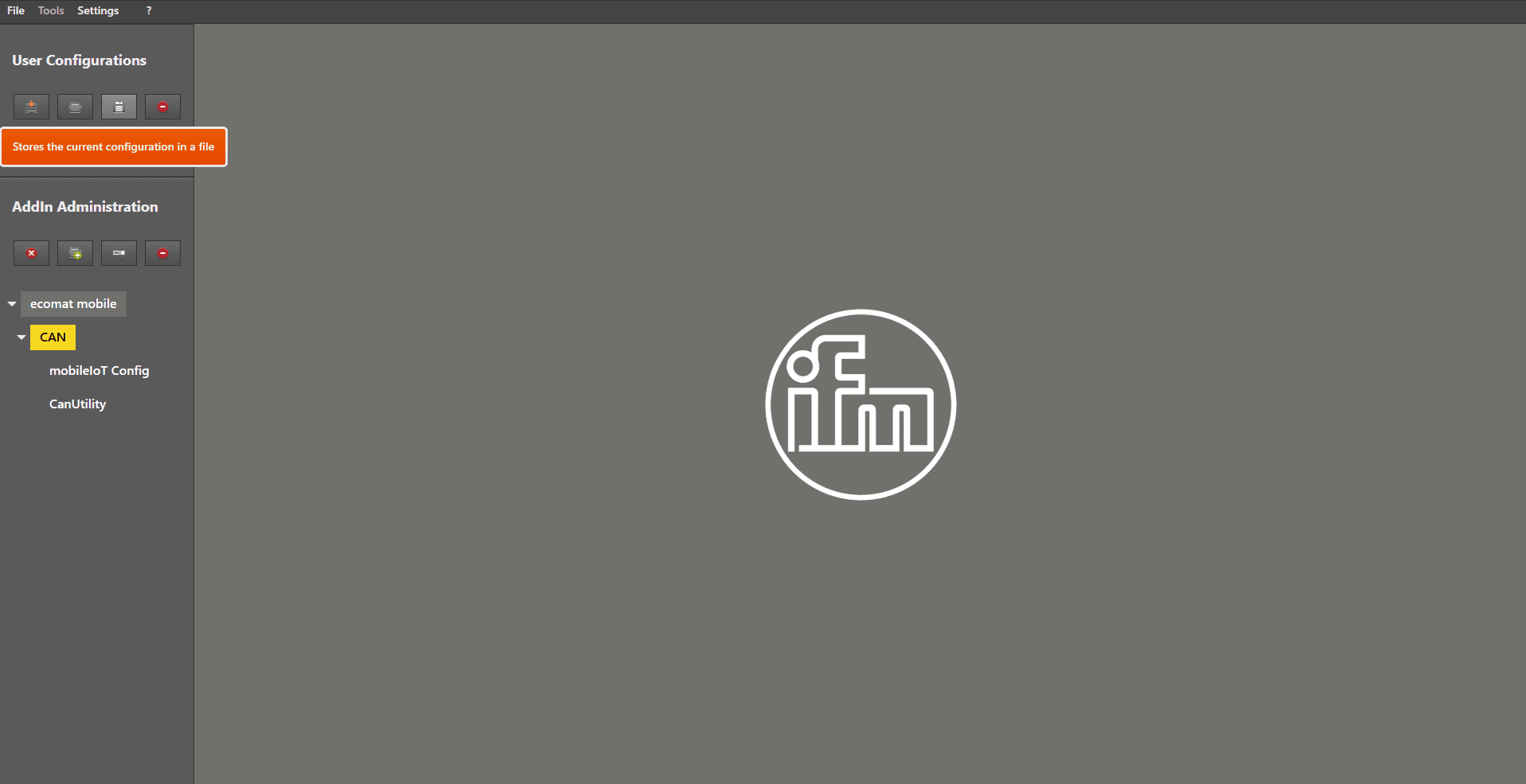
“ CanUtility ” appears under “ ecomat mobile ”.
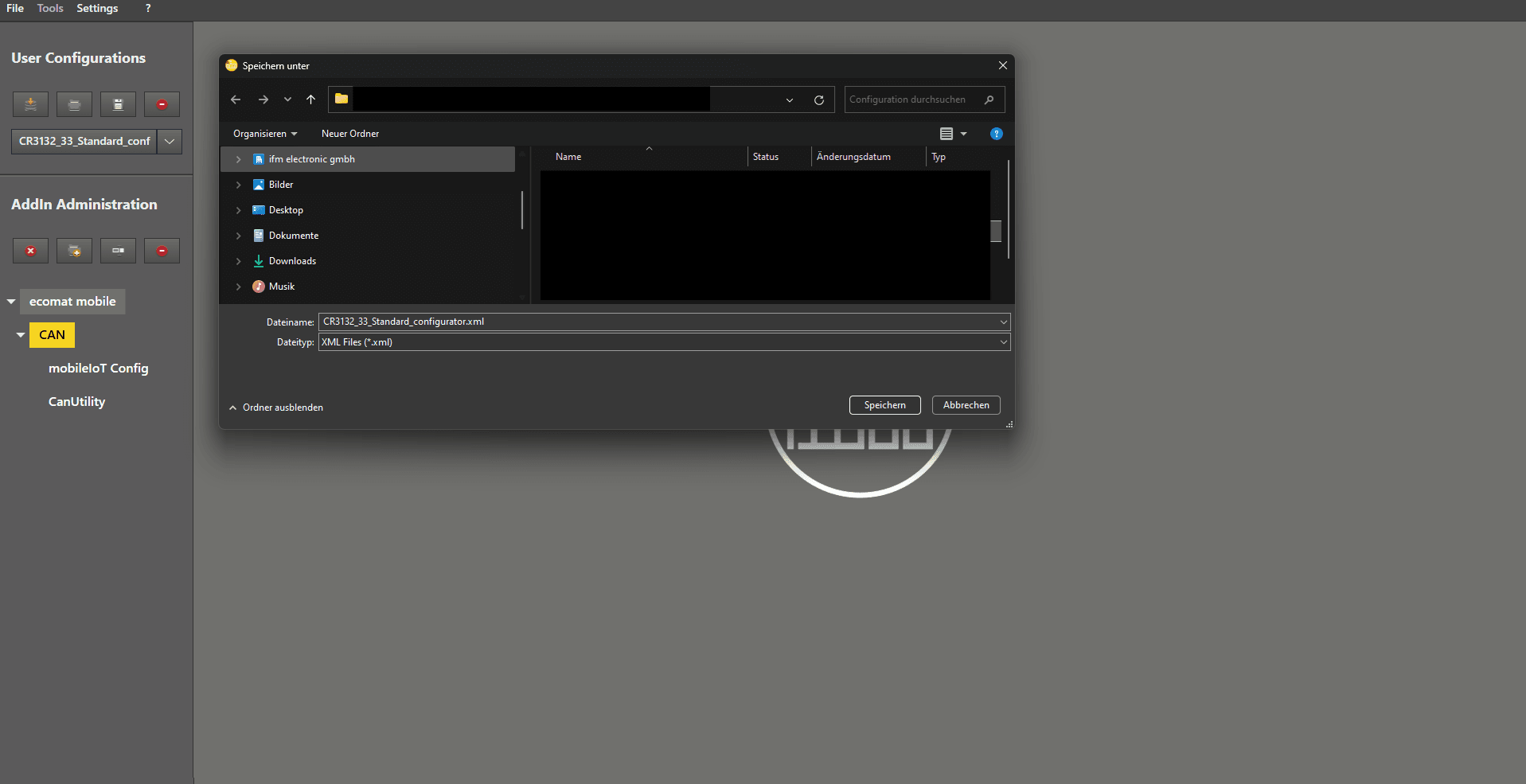
Right mouse click on the disk symbol .
The Data Explorer “ Save as ” window opens.
Choose the location where you want to save your configuration.
Type in a clear and descriptive name for easy identification.
We recommend “ CR3132_33_Standard_configurator ”.
Then click on “ Save ”.
You are done.
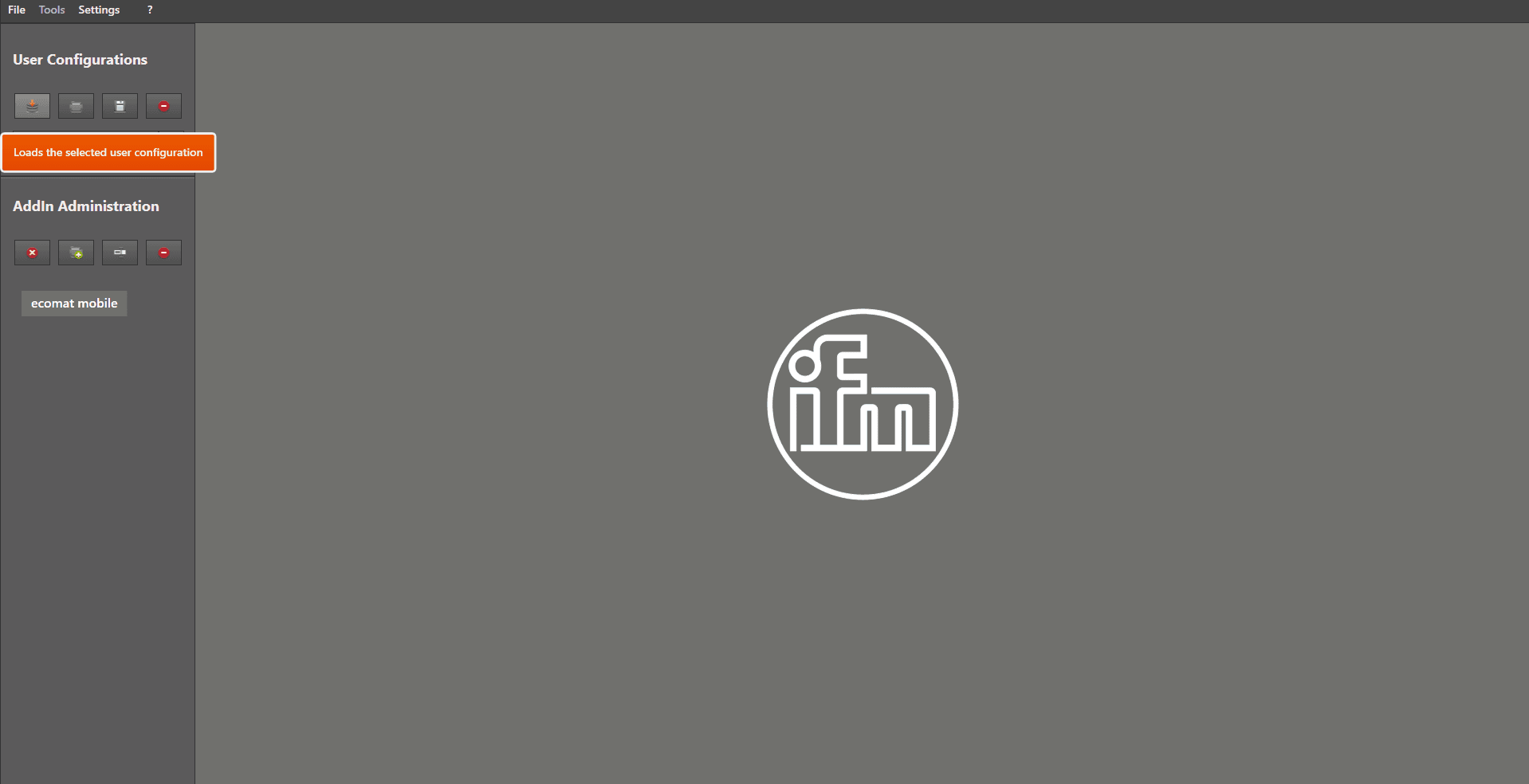
You can now load the configuration by selecting it in the dropdown menu and left mouse clicking on the load symbol .